Jun 18, 2019
What is Plickers?
Plickers, the student response system app, is a formative assessment tool that allows teachers to collect on-the-spot formative assessment data without the need for student devices.
It’s a free, interactive formative assessment tool that uses printable “paper clickers” instead of clicker devices. Each student is assigned a unique Plickers card that has a black and white image similar to a QR code. The letters A, B, C, and D are written in small print around the edge of the image, with one letter on each side of the card.
During the lesson, the teacher displays a multiple-choice or true-false question. Then students hold up their cards and rotate them to indicate which answer they think is correct. The teacher scans all of the response cards at once, using the Plickers app (Apple or Google) installed on a mobile device to get instant feedback. He or she can instantly see the student responses and assessment data for that question including who has the correct answer and who does not.
How Does this Student Response System App Work?
Getting Started
For using this interesting student response system app, check out the following guide:
Download the Plickers App
Download this formative assessment tool from or from App Store.

Answering Prompts
Students can hold up their personal cards (which resemble QR codes) in order to respond to teacher prompts. The direction that students hold the card determines the answer choice which will be recorded. There are also multiple variations on response cards that can be printed here, along with laminated versions that can be purchased from Amazon.

References
Visit our shop
Mar 30, 2019
What is Kidslox?
Are your kids spending too much time staring at screens and are exposed to a lot of inappropriate material? Do you need a way to manage their screen time and control the quality of the media they engage with?
Kidslox is a parental control app that gives you a high level of control over the time your children spend using devices as well as filtering inappropriate web content (pornography, gambling, violence, etc.) and allowing the blocking of individual apps.
One account is all you need to protect as many iPhones, iPads, iPods, Android phones and tablets, and other mobile devices as you have in your family.
How Does it Work?
Features
– Set daily screen time limits
– Block all 3rd party apps, individually or by category
– Use Schedules for device-free homework time, dinnertime, bedtime, and family time
– Switch between unrestricted ‘Parent mode’, custom ‘Child mode’ and fully restricted ‘Lockdown mode’ at the touch of a button
– Set one-off periods in Child or Lockdown Mode using the timer
– Stop your clever kids from changing the restrictions with a unique PIN and childproofing tools
– Filter pornography and other adult content to give your child a safe browser experience
Download the App
Download it from Google Play or from App Store. You can also download this parental control App on Windows or Mac OX S.
References
Visit our shop
Mar 14, 2019
What is Narrator AR?
Technology in education is moving at a fast pace. As early childhood educators look for ways to integrate technology into their classroom, they find quality tools are scarce.
Pioneering immersive technology for kindergarten, Narrator AR is an Augmented Reality App for writing that uses the AR technology to animate handwritten letters off the page. It encourages children at this vital stage of early childhood education to engage the essential fine motor and cognitive skills associated with handwriting.
With simple and intuitive controls children choose a rocket or unicorn character to trace the letters they have written. The letters appear in augmented reality as a layer of almost magic rocket dust or rainbows over the child’s original work.
How Does it W?
Download the App
Enjoy Narrator AR now available on the App Store or Google Play.
Create your Writing Templates
Create your writing templates at https://www.narratorar.com.au/ and follow this exciting brand story on social media @narratorAR.
References
Visit our shop
Feb 16, 2019
What is Lü Interactive Playground?
Lü Interactive Playground transforms traditional school environments into immersive and interactive spaces using a vast catalog of purposeful activities and world-class audiovisual equipments. This tool will definitely offer an outstanding learning experience for the students!
How Does it Work?
Application in the School
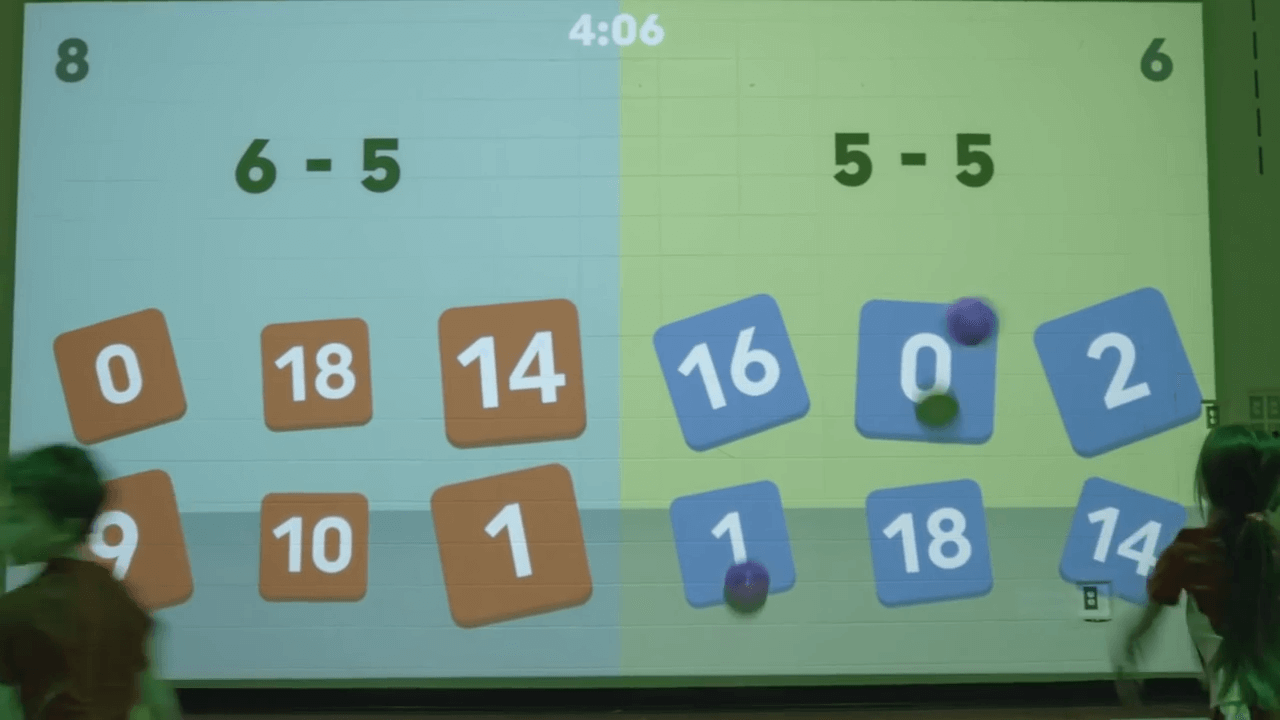
In the picture below, kids are learning a Math lesson but instead of holding pencils and papers, they are using colorful balls! The image projected on the wall shows a Math equation with six possible answers where kids have to do a mental calculation and throw the ball against the correct answer.
Educational Applications
Lü Interactive Playground comes with an ever-growing selection of applications updated frequently and automatically. Below are some samples. Explore all the applications here.
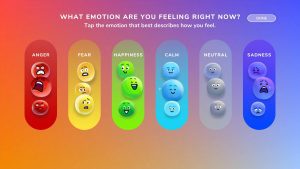
Mööd, the new utility that allows you to quickly know how your group is feeling. Students will be able to choose an emotion, including anger, sadness, joy, fear, neutral or calm.
Wörlds gives you the opportunity to discover new worlds and to fully let your imagination go. Turn your gym into any universe you choose to!
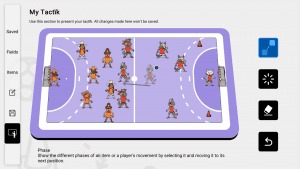
Tacktïk is a giant educational board to strategize with your sports team and create activities in your gym.
References
Visit our shop
Dec 13, 2018
What is the Augmented Reality Christmas Card?
Make this holiday season different by bringing life to your students’ greeting cards! Augmented Reality Christmas Card app lets your students experience the season of love through the Augmented Reality technology. By pointing their tablet or mobile phone at the card, the illustrations on the cover will be animated with joyful music of the season!
How Does it Work?
Instructions
1- Print out the Christmas card below.
2- Download AR Christmas app from the Apple Store or Google Store.
3- Point the camera of the device at the card and enjoy the engaging Augmented Reality experience!
References
Visit our shop
Nov 16, 2018
What is Red Cross Kids Safety App?
Accidents can happen anytime, anywhere, and the solution to avoiding unpleasant surprises is prevention. RED CROSS kids safety app teaches children to improve their safety by preventing accidents and learning the basics of first aid.
Children are the family members who suffer accidents most often. Adults can teach them to take different steps to reduce the risk. In case of an accident, it’s important for children to know what to do. The Red Cross and DADA Company present an innovative way of teaching children how to improve their safety by preventing accidents and learning first aid.
With this app, girls and boys will learn how to recognize everyday hazards they may come upon in different situations and places (at home, in the car, at the park, the beach, the pool, the countryside, etc.) and what steps to follow to prevent them, how and when to call 911 and how to provide assistance for different types of accidents.
How Does Red Cross Kids Safety App Work?
Features
- 11 scenarios in which kids can explore everyday hazards and the steps to take in case of an accident.
- Teaches girls and boys rules for prevention, how to use 911 and the fundamentals of first-aid for mild injuries.
- Recommended as a learning tool for students and teaching supplement for teachers
- Available in Spanish, French, English, German, Portuguese, Italian, Swedish, Dutch, Japanese, Korean, Chinese and Russian.
- Recommended for children ages 6-8.
- App designed according to educational equality standards and reviewed by educational experts.
References
Visit our shop
Oct 23, 2018
What is QuiverVision Coloring App?
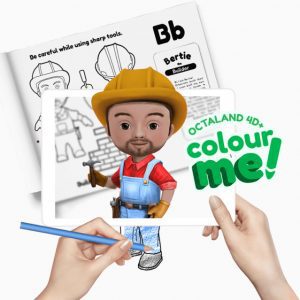
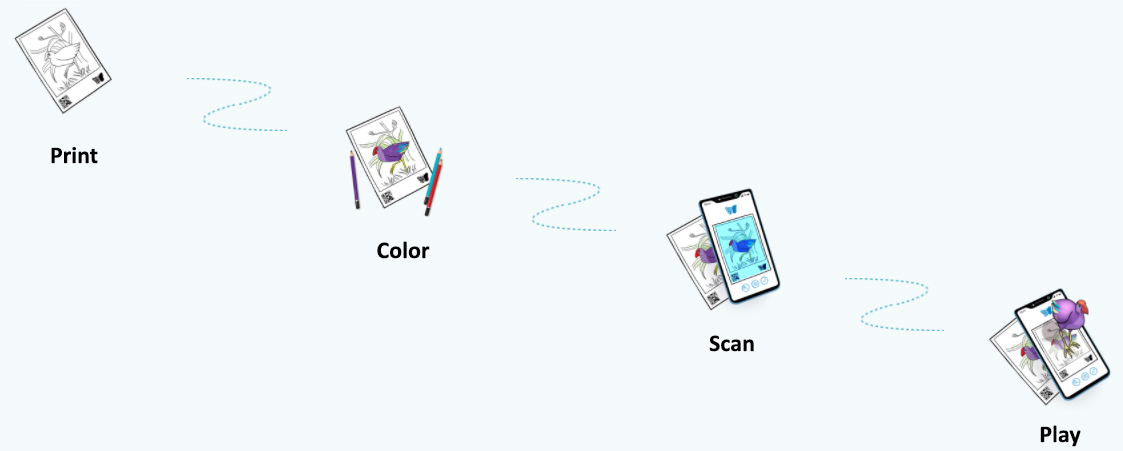
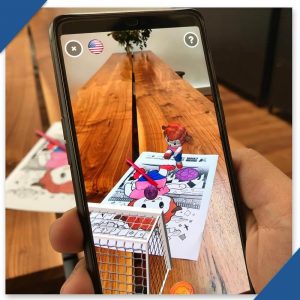
QuiverVision is an AR coloring App that combines physical coloring with the augmented reality technology to bring teachers and students an extraordinarily magical experience! When students finish coloring the sheet, they can use the QuiverVision App to animate its content, interact with the 3D objects and enjoy the in-app quizzes, and games!
How does it work?
Instructions
1- Print out your page from the Coloring Packs.
2- Color it with pencils, crayons, markers, or paint.
3- Download and install the Quiver – 3D Coloring app from the Apple Store or the Play Store.
4- Scan the QR Code on the bottom of the coloring sheet.
5- Scan the coloring sheet to animate your image and bring it to life in 3D.
6- Interact with the 3D objects, in-app quizzes, and games.
Educational Value
- Students participating in active and immersive learning environments are 1.5 times more likely to succeed than students in traditional learning environments.
- It has been proven that students retain 3x as much information from things they actively experience compared to what they read and hear!
- Augmented Reality coloring technology help students better visualize & understand various learning subjects.
- Students will enjoy interacting with the 3D objects, the in-app quizzes, and games.
- The AR coloring sheets add a lot of engagement to coloring. Students will love seeing their color choices come to life!
Why Subscribe?
- QuiverVision platform is your one-stop shop for Augmented Reality content and lesson plans for Pre-K to Year 4 and beyond.
- It is an educational platform that utilizes Augmented Reality coloring technology to help students better visualize & understand various learning subjects.
- Created by teachers & ambassadors, the Augmented Reality lessons are designed to meet the needs of all students by incorporating a variety of activities, so you can start using augmented reality in your classroom right away!
- Over 27 million educators and students engage, learn, and collaborate with QuiverVision throughout the year.
- Access to an extensive range of AR coloring experiences (150+ coloring sheets).
- Access to a repository of supportive supplementary material and activity plans for teachers, students and parents to use in combination with the 3D content they have access to.
- Access to the Educators’ community on Facebook!
How much does it cost?
The cost to subscribe depends on the license plan you choose and the country you live in. There are 5 plans to choose from: 10 seats, 30 seats, 75 seats, 150 seats and a 500 seat school plan. As an approximate guide, if you live in New Zealand the monthly costs are: $5 for 10 seats, $9 for 30 seats, $12 for 75 seats, $18 for 150 seats and $45 for 500 seats.
Plans for 75 seats, 150 seats & 500 seats also offer extra features to make it easier for the account to be managed by several teachers. This makes classroom management much easier as multiple teachers can create & manage their own classes within the same license plan. We also offer discounted annual subscription options. To see your specific rates, please sign up for the free 7-day trial & click on the ‘License Plan’ button within the dashboard.
How to Subscribe & Use the Education Dashboard?
Sign up for a free trial of QuiverVision EDU Dashboard to experience it for yourself! Unlock over 150+ coloring sheets, digital teaching aids,and resources like activity plans and more!
Check out the Getting Started Kit here. Don’t forget to use the CODE “QVTECHEDUC” for a SPECIAL DISCOUNT!
Coloring Packs
More than 150+ quiver coloring pages covering different educational topics to use in your classroom! Download them here!
The Animal ABC pack includes an augmented reality coloring sheet for 26 animals – one animal for each letter of the alphabet! The experiences include a path of motion game, a drag and drop game as well as lots of phonics to listen to! Overall, a very fun & engaging way for kids to learn about the alphabet and associated animals.
The QuiverVision Numbers pack includes an augmented reality coloring sheet for each number from 1 to 10! The pages provide a fun & cool way for kids to learn about simple numbers. The pack also includes interactive quizzes for all grades and other engaging learning activities.
Try out the new Science pack which includes Plant Lifecycle, Water Lifecycle, Food Chain, Plant Cell, Animal Cell & Volcano.
Feel the power of the 5 Platonic Solids and discover the magical elements of each solid. A polyhedron is composed of 12 faces and represents the fifth element ether, added by Aristotle. A hexahedron is a solid object bounded by six square faces and represents the classical element of earth. A polyhedron is composed of 20 faces and represents the classical element water. A polyhedron is composed of eight faces and represents the classical element of air. A polyhedron is composed of four triangular faces and represents the classical element of fire. Watch them take shape and come to life on your desk!
QuiverVision Aquatic Animals adds new premium pages: the Octopus, Duck and two Dolphin pages.
Try the new Dinosaur pack! The pack includes Velociraptor, Triceratops, Dilophosauraus, Tyrannosaurus (T-Rex), Brachiosaurus, Stegosaurus, Compsognathus & Pterodactyl!
Seven iconic landmarks from around the world! Each page features a famous landmark and an animal from that country that can be colored in! Bring the page to life to see the landmark and animal in augmented reality, and to browse interesting facts about them.
Christmas, Valentine’s Day, Easter and Halloween, bring your favorite holiday celebrations to life!
Color & learn about iconic aircraft from history! We’ve included six of the most famous fighter planes: the Spitfire, Sopwith Camel, de Havilland Vampire, Fokker Dr. I Red Baron, Lockheed P-38 Lightning and Me 262!
Earth day is a secular holiday dedicated to bringing awareness to the state of the planet with the goal of inspiring the world to unite under the common cause of protecting and restoring our planet. It has grown into an international movement, with over 1 billion people mobilized into action each year. Check out the new eARth day page, along with some amazing lesson/activity plans developed for the “Restore our Earth” official 2021 theme!
References
Visit our shop
Sep 1, 2018
What is Classtools Timer?
Teachers can use Classtools Countdown Timer to time classroom activities by displaying it on a projector, whiteboard, interactive board, or during online sessions.
They can also set multiple timers on the same page for different students by adding their names on the top of each timer. Moreover, they can add music to the timers from the website music gallery or from YouTube.
How to Use this Classroom Timer?
Features
- Add multiple timers! Run in sequence or all at once!
- Add a tune / YouTube video to each timer!
- Save a weblink to your customized timers!
References
Visit our shop
Jul 9, 2018
What is Cleverbooks Augmented Reality World Map?
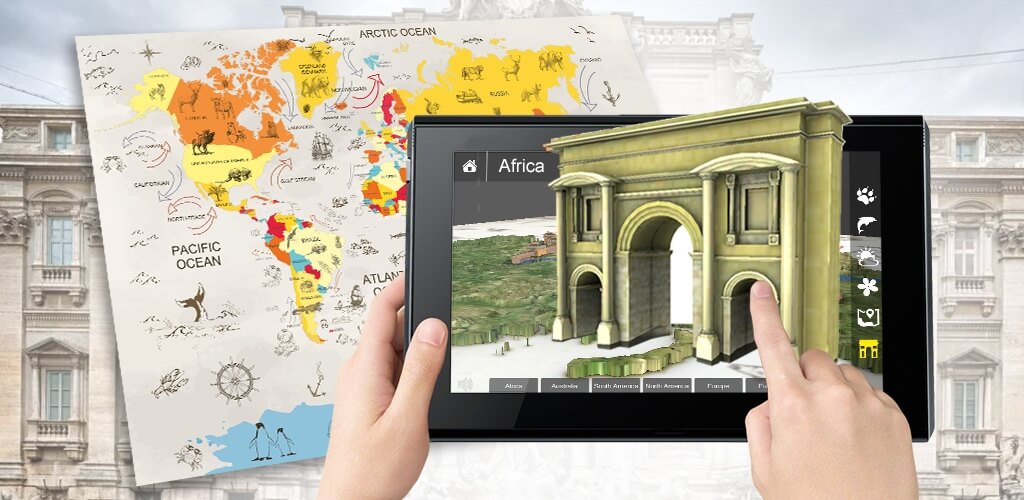
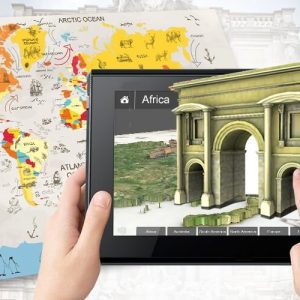
Cleverbooks Augmented Reality World Map is an augmented reality map that allows students to travel through continents in 3D, see the geography of different lands, and check out their weather and seasons. They will also get information about geographical peculiarities, political structures, land & water animals, plants, heritage, and monuments.
How Does this Cleverbooks Augmented Reality World Map Work?
Educational Value
- Increase kids’ motivation to learn and level of engagement
- Practical learning using auditory, kinesthetic, and visual receptors
- Teach kids to use technology strategically to acquire 21st-century skills
- Make homework & learning fun
- Increase retention rate by 100%
Instructions
- Get your World Map.
- Download and launch a FREE CleverBooks Geography App from Google Play or App Store.
- Select Continents and face the camera of your mobile device on the World Map to explore its wonders.
General Product Features
- Augmented Reality powered map of the world poster
- STEM certified software content
- Global curriculum-based software content
- No internet connection required once the app is installed
- No technical skills needed to use software
- Regular software updates forever free
- No hidden costs
Augmented Reality Features
- Geographical peculiarities of the continents
- Political structure
- Monuments and other heritage
- Flora and fauna
- Water animals!
- Interactive weather for each season
- Interesting facts about each animal, feed the Animal mode … and much more!
References
Visit our shop
May 27, 2018
What is Space 4D+?
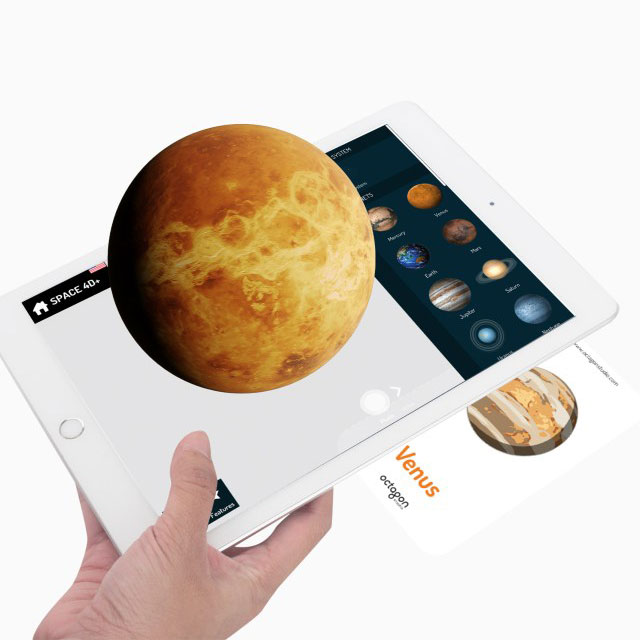
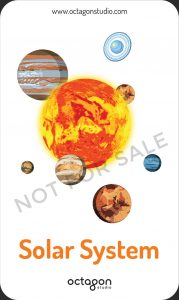
Space 4D+ by Octagon Studio is an AR space app that allows learners to scan printed space cards and witness the space comes to life with the augmented reality technology!
Learners will learn interesting and informative facts in AR mode about the solar system, the planets, the space objects, the satellites, the rovers, the space missions, etc.
This space 4D app brings a new way of seeing space in Augmented Reality. It gives an unforgettable experience and will always leave a smile on the faces of children and adults alike.
How Does This AR Space App work?
Instructions
1. Download Space 4D+ app from the App Store and Play Store
2. Open the app
3. Place the card on a surface and scan it with your device’s camera
4. Input the serial number in the pop up serial box
5. After the authorization is completed, you can directly see the images come alive!
Flashcards’ Specifications
- Language: English
- Cards: 27 pieces (26 Space Cards + 1 Instructions Card)
- Weight: 90 grams | 0.19 lbs
- Dimension: 11.7 cm x 7.2 cm x 1.1 cm | 4.6 inch x 2.8 inch x 0.4 inch
- Paper Finish: Durable Thick Art Paper (Doff Laminated)
Space 4D App Details
- Platform: iOS | Android
- Age: 4+
- App Size: 246.3 MB (iOS) | 83 MB (Android)
- Min OS: iOS 7.0 | Android 4.0.3 (Ice Cream Sandwich)
- Languages: English (US), English (UK), Turkish, Korean, Arabic, Persian, French, Hebrew, Japanese, Spanish, Thai, German, Mandarin, Bahasa Indonesia, Italian, Russian, Dutch, Portuguese
Lesson Plan, Case Studies, and Brochure
- Lesson plan:
- Case studies:
- Brochure:
Get the flashcards
Order your flashcards here: https://technologyeduc.com/product/space-4d/
Samples of AR Space Flashcards
Download the Space 4D app, scan the samples below, and enjoy this AR space app experience!
References
Visit our shop
Apr 29, 2018
What is Virtuali-Tee?
Virtuali-Tee is an augmented reality t-shirt that reveals the virtual organs of its wearer. Simply download the app and point your phone at the t-shirt to discover the world under your skin. Use it in your classroom to bring learning to life! It couldn’t be easier to implement it into your lesson and will transform the way you teach to get that wow moment every time.
How Does it Work?
Where to Buy the AR T-Shirt?
The AR t-shirt is available for purchase here.
How to Download the App?
The app is free to download from Google’s Play Store or Apple’s App Store depending on your device. Simply search ‘Virtuali-Tee’ to find the app and click ‘install’.
Please ensure your device’s compatibility by testing it here. When you test the app on the demo page you may be prompted for an in-app purchase – just ignore this prompt as when you receive and scan your AR t-shirt it will automatically unlock this.
How to use the Virtuali-Tee App?
Once the virtuali-tee app is downloaded please ensure you have allowed camera access as it is required to scan the AR t-shirt.
Put on your Virtuali-Tee, get a student to wear it or even pop on a skeleton. Open the app and point your device’s camera at it. For best results stand about 3 feet away from the AR t-shirt. If the camera doesn’t detect and scan it, try bringing your device closer and then slowly pulling it away.
Once the app has scanned the Virtuali-Tee, tap anywhere on the screen to peel back the layers of the body and interact with the different systems and organs by clicking on the hotspots.
The app works in selfie mode, so a student wearing the t-shirt can use the front camera to explore the internal systems on themselves. Activate this by clicking on the switch camera icon in the top right corner.
If you have a VR headset you can also activate VR mode by tapping on the VR goggles in the top right corner. The app is compatible with most cardboard headsets as long as they allow camera access. In VR mode hover the cursor over the hotspots in order to interact with the systems.
Hans Glover is the anatomy expert that will guide and talk you through all the different systems and organs. Tap the hand icon at the bottom to activate Hans.
How to Connect it on a Big Screen?
You can connect the app to a TV, projector, or Whiteboard through Airplay, Apple TV, or Chromecast. Simply plug your Chromecast or Apple TV into the projector and connect your device. You can find further information on how to connect your devices below.
iOS:
https://support.apple.com/en-gb/ht204289
https://support.apple.com/en-gb/apple-tv
Android:
https://support.google.com/chromecast/answer/6006232?hl=en-GB
References
Visit our shop
Feb 6, 2018
Improve your students’ organization skills by helping them organize their desktops with these desktop wallpapers!
Desktop Organizer Wallpapers
Wallpaper 1
Wallpaper 2
Wallpaper 3
Wallpaper 4
Download the Wallpapers
- Wallpaper 1:
- Wallpaper 2:
- Wallpaper 3:
- Wallpaper 4:
References
Visit our shop


 Are your kids spending too much time staring at screens and are exposed to a lot of inappropriate material? Do you need a way to manage their screen time and control the quality of the media they engage with?


 Make this holiday season different by bringing life to your students’ greeting cards!
 Accidents can happen anytime, anywhere, and the solution to avoiding unpleasant surprises is prevention.

 Teachers can use