Jul 27, 2021
What is BOOKR Class?
BOOKR Class features advanced multimedia content produced fully in-house that combines original animation, music, interactive games, storytelling, animated flashcards with 4,000 words, and a vast library of children’s books from prestigious publishers including Oxford University Press, Albert Whitman & Company, and Blue Apple Publishing to deliver a first-of-its-kind ESL tool for both classroom and home use.
Organized in multiple levels that specifically address all age groups from kindergarten through eighth grade, BOOKR Classutilizes Accidental Learning as a basis for its comprehensive approach to teaching English. A burgeoning new category of instruction, Accidental Learning occurs when the student is immersed in a range of activities and experiences outside of the scope of traditional instruction that leads to learning.
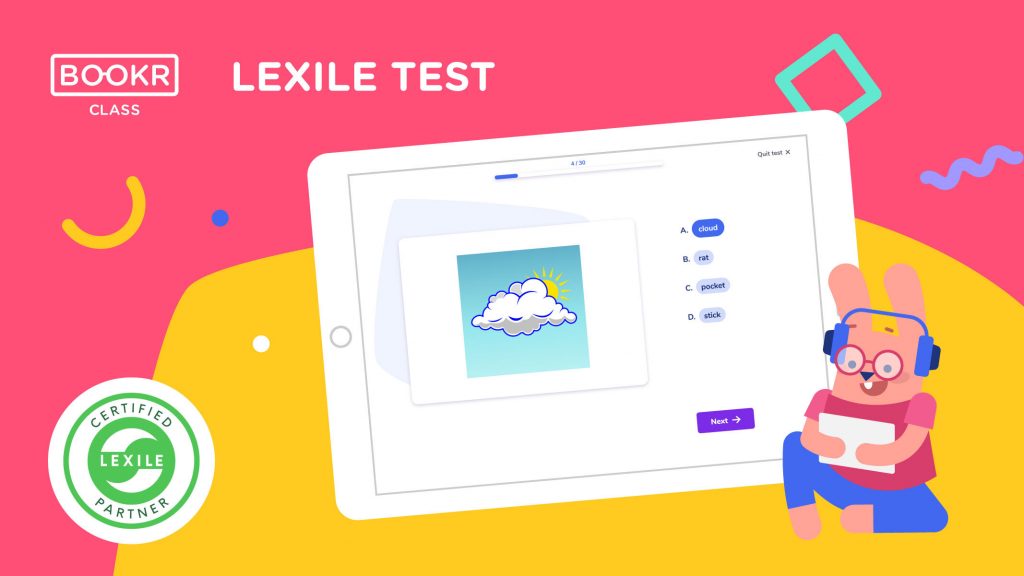
This educational app promotes learning English vocabulary and structure as a by-product of enjoying the app’s diverse interactive elements. To continuously measure each child’s reading ability, It employs Lexile® Framework for Reading learning measurement technology. The app is also breaking new ground with its inclusion of flashcards powered by AI-based speech analysis that enables kids to practice pronunciation and receive instant feedback.
For the classroom, BOOKR Class provides teachers with a complete teacher’s dashboard that can monitor progress and help design custom sessions. Designed for total flexibility, it presents more than 100 lesson plans, activity tips, printables, and a corresponding search engine providing teachers with instant access to the most thematically appropriate supplementary lessons for their class.
BOOKR CLASS FEATURES
BOOKR Class offers a 3-in-1 solution for teachers and students: a fast-growing digital library and a teacher’s dashboard for tracking engagement and reading activity.
1. BOOKR Class Library App for Students
- Engaged Students
Improve reading comprehension, vocabulary, grammar, pronunciation and social-emotional skills – thanks to 1000+ beautifully animated books, interactive games and flashcards.
- Safe Learning Environment
Ad-free application with thoroughly researched content
by educators, children literature experts and psychologists.
Accessible on mobile devices, computers, online and offline.
2. Online Teacher’s Dashboard for Teachers
- Time-Saver and Data-Driven
Easy-to-use platform with reading statisics, automatic exercise correction, book assignments, search engine, activity tips and printables.
- Curriculum Ready
Choose the best titles for your curriculum – thanks to carefully selected and labeled EFL/ESL content and the built-in search engine.
3. BOOKR Classroom App
- Present books and games in entertaining and interactive ways – remotely or in-class, through screen share, interactive board or projector.

BOOKR CLASS MULTIMEDIA FEATURES
BOOKR Class enhances stories to improve language skills through its:
- Engaging Animated Content
- Authentic Native Narration
- Guiding Text Highlighting
- Fun Educational Games
- Quiz
- Placement Test
- Annotation
- Assigned Books
BOOKR CLASS METHODOLOGY
BOOKR Class is designed for teachers by teachers. To help children reach their full potential, our product development follows a proven researched methodology with texts and activities designed for individual and classroom learning. The illustrations and animations support the understanding of the texts, but don’t distract from reading, while the educational games practise the linguistic elements in a focused, fun and entertaining way. Read more
BOOKR ClASS CURRICULUM
- World-famous stories in English, adapted to the linguistic needs of language learners, from beginner to intermediate levels (recommended age group: 3-12);
- Contemporary nonfiction and fiction stories written for language learning and reading comprehension development purposes;
- Educational games and exercises (spelling, vocabulary, pronunciation, listening and reading, grammar and chunks, reading comprehension, useful expressions, mazes, coloring, puzzles, “find the difference,” etc.);
- BOOKR is in partnership with Oxford University Press to provide classic world literature for young learners (The Jungle Book, Around the World in Eighty Days, Romeo and Juliet, The Wizard of Oz, etc.). Read more
BOOKR CLASS TITLES
Compiled by English as a Second Language teachers, experts on children’s literature and academics, the BOOKR Class library offers titles on six levels based on CEFR guidelines and the Lexile measurement. Classics and modern favourites of world literature, nursery rhymes, songs, unique stories by our in-house authors, as well as additional materials on civilisation and cultural insights, flashcards and fun activities provide an engaging teaching and learning experience. Check out the full library here.
SAMPLES OF BOOKS
1. Beginner
- Book Title: At the Market
- Description: Tomatoes, strawberries, bananas: what else can you find at a market? Let’s shop together!
2. Pre Elementary
- Book Title: A Day at the Beach
- Description: Nobody likes it when the beach is dirty. Help the kids to clean it up.
3. Elementary
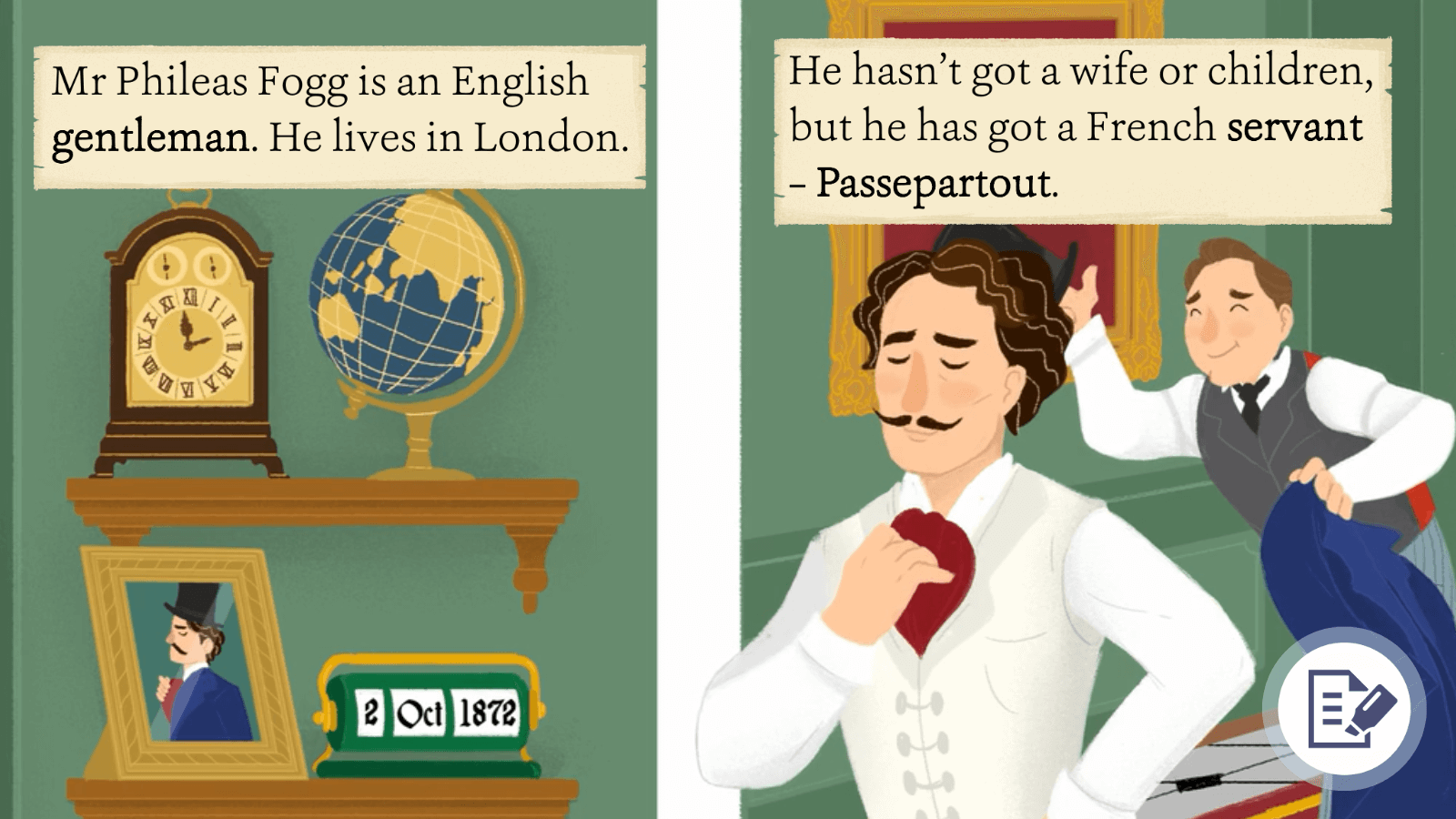
- Book Title: Around the World in Eighty Days I
- Description: Phileas Fogg must get back to London by 21st December or lose all his money. Read the story and find out whether he succeeds.
4. Pre Intermediate
- Book Title: Countries and Nationalities
- Description: There are almost two hundred countries in the world! What are these and how do we call their citizens? Let’s see and learn some of them!
5. Low Intermediate
- Book Title: A Scandal in Bohemia
- Description: The King of Bohemia visits Sherlock Holmes and Dr. Watson and asks for help. A young lady, Irene Adler, is involved. Read the story and find out what happens.
6. Intermediate
- Book Title: Homophones
- Description: Homophone: each of two or more words having the same pronunciation but different meanings. Learn about homophones with the funniest illustrations.
BOOKR CLASS DOWNLOAD
1. Download BOOKR Class library for students
- Install the library application on the devices your students use. It works both on tablets (App Store – Google Store) and computers.
- You’ll generate their access code online in step n°2.
2. Online Teacher’s Dashboard for Teachers
3. BOOKR Classroom App
- Do you want to share educational content in-class or online?
- Download the Classroom App on mobile (App Store – Google Store) or on the desktop and project any book or game easily.
TEACHERS’ SOLUTION
As an educator or school leader, you are eligible for a FREE 14 days trial.
Request your free BOOKR Class trial here and see how it frees up your time so you can focus on what you do best: teaching.
FAMILIES’ SOLUTION
Teach your kids at home with an engaging and playful reading experience. Check out the families’ solution here.
References
Visit our shop
Jul 19, 2021
The Augmented Reality (AR) can be used for different objectives in the classrooms. This innovative technology overlays virtual content on top of the real environment, allowing students to interact with content in whole new ways.
Since the technology’s inception, App developers have been producing the best AR apps for education that help improving classroom learning through increased engagement and interactivity.
These Augmented Reality apps allow students to expand their knowledge and also engage them in the process of developing AR projects. Additionally, they enable educators to build their own AR content and lesson plans. Below is a list of the 15 best AR apps for education.
15 Best AR Apps for Education
1. Narrator AR
Narrator AR is one of the best AR apps for education that supports pre-school writing in a fun and inspiring way. The application encourages children to pick up a pen and write before using the app to animate handwritten words off the page in Augmented Reality. It also motivates them at a vital stage of early education to engage essential fine motor and cognitive skills in order to support early literacy and brain development. Watching letters and numbers form in 3D animation helps young learners gain a deep understanding of how to write. It is specifically beneficial for visual learners.
How to Use:
1. Download Narrator AR app from the Apple Store or Google Store.
2. Download the sheets or get the activity books here.
3. Open the app.
4. Scan the sheets or the activity books with your device’s camera.
2. CleverBooks
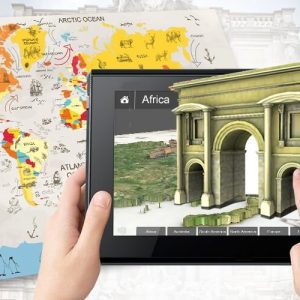
CleverBooks Geography allows K1 to K-6 students to explore ready-to-use content in Augmented reality. It features 3D models of countries and includes information on geographical peculiarities, political structures, animals, plants and heritage sites, and more. Adaptable to multiple subjects (geography, literacy, social studies, the world around us, etc.) and grades, CleverBooks Geography is one of the best AR apps for education that engages students in a new way of seeing and exploring the world, and all its wonders through an interactive learning experience of a real-world environment.
How to Use:
1. Download CleverBooks Geography app from the Apple Store or Google Store.
2. Get the map here.
3. Open the app.
4. Scan the map with your device’s camera.
3. QuiverVision
QuiverVision is also one of the best AR apps for education that combines physical coloring with the Augmented Reality technology to bring students an extraordinarily magical experience. When students finish coloring the sheet, they can use this 3D coloring app to animate its content.
How to Use:
1. Download Quiver app from the Apple Store or Google Store.
2. Download the coloring pages here.
3. Print out the coloring pages.
4. Color the coloring pages.
5. Open the app.
6. Scan the coloring pages with your device’s camera.
4. Virutali-Tee by Curiscope
The Virtuali-Tee by Curiscope takes Science to a new dimension enabling students to learn about the human body… on a human body. With beautifully designed Augmented Reality and amazing 3D learning experiences, learners can explore the circulatory, respiratory and digestive systems with fully immersive 360° videos. It’s is one of the best AR apps for education that allows students to track their heart rate and see it animating live in the app.
How to Use:
1. Download Virtuali-Tee by Curiscope app from the Apple Store or Google Store.
2. Get the Virtuali-Tee T-shirt here.
3. Put on the T-shirt.
4. Open the app.
5. Scan the T-shirt with your device’s camera.
5. Animal 4D+
The Animal 4D+ app is created to highlight the beauty and importance of wildlife on Earth. Various animals are magically brought to life in realistic 3D animation through the magic of Augmented Reality for the children to observe, along with their unique sounds and movements. It’s one of the best AR apps for education designed to contribute in building children’s awareness about the diversity of animal species and the importance of preserving, protecting, and saving the ecological balance.
How to Use:
1. Download Animal 4D+ app from the App Store or Google Store.
2. Get the AR flashcards here.
3. Open the app.
4. Scan the flashcards with your device’s camera.
6. Space 4D+
Space 4D+ app is a simple yet smart tool using the Augmented Reality technology to take children on a journey to the edges of our solar system, where they can easily observe and learn about various celestial bodies and space explorations. It’s one of the best AR apps for education designed and created to inspire children with the wonders of our universe.
How to Use:
1. Download Space 4D+ app from the App Store or Google Store.
2. Get the AR flashcards here.
3. Open the app.
4. Scan the flashcards with your device’s camera.
7. Octaland 4D+
Octaland 4D+ is one of the best AR apps for education that features an assortment of real-life occupations through 26 Octanian characters from A-Z using the Augmented Reality technology. “Once upon a time, there is a magical land ruled by Kaz the Knowledgeable King. It is called Octaland and its inhabitants are called the Octanians. From Albert the Astronaut to Zack the Zookeeper, the Octanians are hardworking people, proud of what they do for a living!”
1. Download Octaland 4D+ app from the App Store or Google Store.
2. Get the AR flashcards here.
3. Open the app.
4. Scan the flashcards with your device’s camera.
8. CleverBooks Geometry
CleverBooks Geometry allows students to explore geometric solids in Augmented reality and spark their curiosity for 3D geometry. It’s one of the best AR apps for education that features 3D models of five main 2D-dimension geometrical shapes (circle, rectangle, cube, hexagon, and triangle) and enables a teacher to explain abstract geometry concepts through 3D visualization. Pair the app with CleverBooks Geometry Building Blocks to create an engaging and immersive learning environment for kids at home of ages 5 to 12 years or students in your math class (K-6).
How to Use:
1. Download CleverBooks Geometry app from the Apple Store or Google Store.
2. Get the CleverBooks Geometry Building blocks here.
3. Open the app.
4. Scan the Geometry Building Blocks with your device’s camera.
9. Catchy Word
Catchy Word lets learners walk around their homes, classrooms, and more, to ‘catch letters’ using the Augmented Reality technology. Once the letters have been caught, they can be arranged into a word. It’s a perfect app for kids struggling with spelling. It’s one of the best AR apps for education that allows teachers and parents to create their own word list and solve either one word or the entire list in series.
How to Use:
1. Download Catchy Word app from the App Store or Google Store.
2. Open the app.
3. Walk around while scanning the environment around you with your device’s camera.
10. ANSTO XR
ANSTO XR is one of the best AR apps for education that unlocks the periodic table to reveal a world of protons, neutrons, and electrons and illustrates how useful they are to science and industry in the 21st century. By pointing their devices at the ANSTO periodic table poster, students can see new and engaging information about some of the most popular elements; including the arrangement of the atom and information on how the element is used in everyday life.
How to Use:
1. Download ANSTO XR app from the App Store or Google Store.
2. Download the periodic table poster here.
3. Print out the poster.
3. Open the app.
4. Scan the poster with your device’s camera.
11. GeoGebra Augmented Reality
GeoGebra Augmented Reality ignites interest and critical thinking around math and physical space. It includes several examples of 3D math objects that students can place on the table, floor, or any flat surface around them. It’s one of the best AR apps for education that allows learners to work as individuals or in pairs to explore shapes, 3D functions, and more. They can also rotate their cameras to connect a Penrose triangle or enter a Klein’s bottle. Moreover, they can take screenshots from multiple angles, compare evidence with other students, and then come back to class for presentation and discussion.
How to Use:
1. Download GeoGebra app from the App Store.
2. Hold on your device over a flat surface.
3. Choose the topic from the menu.
12. Bookful
With the power of Augmented Reality (AR) and 3D elements, Bookful creates an engaging experience and brings stories and characters to life. Parents and educators will love how this app transforms reading into an active learning experience. It’s one of the best AR apps for education that holds the world’s largest 3D/AR library with hundreds of titles from leading publishers and brands such as The Tale of Peter Rabbit, DK’s Encyclopedia, and children’s favorites, Barbie, My Little Pony, Thomas & Friends, Transformers, and The Smurfs.
How to Use:
1. Download Bookful app from the App Store or Google Store.
2. Open the app.
3. Choose the book.
13. World Brush
World Brush is an Augmented Reality app that allows students to paint with brushes on the world around them. It’s one of the best AR apps for education that also allows them to share their paintings with their friends and teachers. Every painting is anonymous and is saved at the approximate GPS location where it was created.
How to Use:
1. Download World Brush app from the App Store.
2. Open the app.
3. Scan the environment around you with your device’s camera.
4. Paint.
14. Google Translate
With the AR feature of Google Translate, students can point their device’s camera towards the text they want to translate, and it will give them a real-time translation on the image display. It’s one of the best AR apps for education that makes it easy for your students to learn languages without typing the words they want to translate.
How to Use:
1. Download Google Translate app from the App Store or Google Store.
2. Open the app.
3. Scan the text with your device’s camera.
15. Arloon Plants
With Arloon Plants, students will find out all about plants: their parts, their life cycles, and their different species. They will delve into the way they adapt to ecosystems and the seasons to survive and discover a host of curious facts that will amaze them. It’s one of the best AR apps for education that allows students to take care of their own virtual plants that they can bring to the real world through the Augmented Reality technology.
How to Use:
1. Download Arloon Plants app from the App Store.
2. Download the AR card here.
3. Print out the AR card.
4. Open the app.
5. Scan the AR card with your device’s camera.
References
Visit our shop
Jun 12, 2021
PRESS RELEASE
EDT launches Exams for Zoom, a non-invasive solution for online exams that both institutions and participants can trust, in a familiar Zoom environment.
The initiative is led by education technology industry leaders and backed by millions of dollars and years of research.
Today Exams for Zoom announces a solution that marries the simplicity and ubiquity of online video conferencing with the transparent and non-invasive deployment of advanced technologies (with features like sentiment analysis, computer vision, artificial intelligence), with the ultimate goal to better inform and support online assessments.
The secure exams sector has evolved out of necessity, often presented with an almost Orwellian type of control. “We recognized an opportunity to disrupt with a new sub-segment in the online exams industry because both universities and students dislike most proctoring solutions, however they are forced to utilize them for accreditation and certification purposes,” says Pablo Langa, CEO at Exams for Zoom.
“Exams for Zoom provides the foundation for trust, academic integrity and modern assessment methodologies,” said Alan Greenberg, Chief Solution Evangelist at Exams for Zoom and former EMEA head of Education at Apple. The initiative focuses on providing real time, behind the scenes metadata so that great assessment experiences can stand out from average ones, all in a Zoom-like environment that both institutions and participants are familiar with and trust.
Built for Zoom with a global mindset, Exams for Zoom is launching today with a set of industry partners in K12, Higher Education and the corporate space, that combined touch millions of users in different corners of the world. These early adopter partners are helping inform the product roadmap as it heads to its first general availability version later this fall.
As former Global Education Leader at Zoom and current Senior Advisor to Exams for Zoom, Anne Keough Keehn claims that, “There is an increasing need for more sophisticated synchronous use cases in education. We are extremely excited about Exams for Zoom and its simplicity to bring trusted online exams to all, on Zoom.”
The solution has been inspired by European research activities that started in 2016, funded by the European Union with more than $8M USD, involving more than 22,000 participants and 450 faculty in 10 countries (An Adaptive Trust-based e-assessment System for Learning).
Interested institutions, corporations, schools, policy makers and educators can learn more at Examsforzoom.com and request further information and product details.
Exams for Zoom.
Trust. Academic Integrity. Better Assessments.
About Exams for Zoom
Exams for Zoom is a venture by the leading education consultancy EDT&Partners. It is a non-invasive solution for online exams that both institutions and participants can trust, in a familiar Zoom environment. The initiative is backed by years and millions of dollars of research and led by international education technology industry leaders. Exams for Zoom provides the foundation for trust, academic integrity and the future of assessment methodologies.
Zoom is a registered trademark of Zoom Video Communications, Inc..
Zoom Video Communications, Inc. is not formally affiliated with Exams for Zoom.
SOURCE EDT&Partners Ltd.
About EDT&Partners
EDT&Partners is a global, purpose-driven consulting firm, dedicated to IMAGINE, INSPIRE & IMPROVE education. The firm helps education institutions, EdTech companies, publishers, startups, NGOs and governments in the education space accelerate digital transformation, grow into new territories, connect with strategic partners and support plans for mergers and acquisitions.
APAC | AMERICAS | EMEA http://www.edtpartners.com
Visit our shop
Jun 7, 2021
What is MEL VR Science Lab?
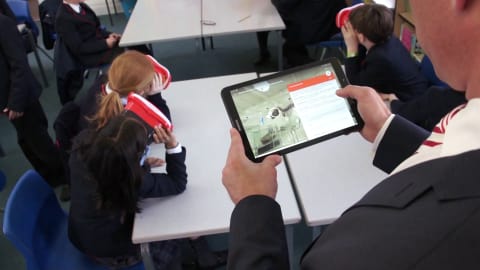
It is difficult nowadays to retain the attention of children with formulas and boring textbooks, therefore teachers are always trying to find innovative ways to deliver their content. With MEL VR Science Lab, science becomes a favorite subject at home and at school! Immersing students in a virtual reality experience with short 5-minute VR lessons, interactive labs, and simulations is an excellent way to deliver complex chemical and physical concepts through engaging visualizations.
MEL VR Science Lab is a growing series of science simulations, lessons, and labs covering chemistry and physics. Made to fit right into the school curriculum, Virtual Reality turns studying into an interactive and immersive experience, making learning entertaining!
With VR headsets on, learners will be immersed in a VR science lab where they will see chemical compounds and physical reactions inside everyday objects. They will zoom in on seemingly simple objects like a pencil or a balloon, fly between molecules and atoms, and understand the differences between solids and gaseous substances at a molecular level!
How Does this MEL VR Science Lab Work?
MEL VR Science Lessons
At present, the application contains a growing library of over 70 VR lessons, labs, and simulations that cover all the main chemistry and physics topics.
Samples of MEL VR Science Lessons
The first lesson shows that all matter consists of atoms. It will take students inside graphite and a diamond. Students will see that both materials consist of the same carbon atoms, but have very different properties because their atomic level structure is different. Students will also learn that atoms in solids do not stay still – they vibrate.
- Interactive Periodic Table
You can play with this interactive periodic table, exploring each atom and adjusting its electron orbitals and the corresponding configuration diagram.
In this interactive lab there are many different molecular compounds you can zoom into and see their molecules. You must write down their molecular formulas.
In this lab, you can register how many particles hit the wall and how hard. You can make measurements for different areas. Use the obtained data to calculate the pressure.
The term charge is introduced, and the attraction and repelling of charges are explained. You can see how charged balls interact: the forces applied to them and their movement under these forces.
Teacher Mode
While using MEL VR Science Lab, teachers can control the lesson flow using the special teacher mode with a few touches of their tablet. They can instantly connect to all the student devices, start and pause the lesson and control the progress of each student.
Pricing and Set-Up
- Download MEL VR Science Smilulations app on your tablet.
- Purchase a license here to receive an email with an activation link.
- Download MEL VR Science Simulations app on your classroom devices from Apple Store or Google Playstore — they will automatically connect to the tablet.
- Control the lesson flow with a few clicks.
Educational Values
- Understanding, not memorizing
To understand chemistry and physics, you have to understand what is happening on the molecular and atomic level. Just memorizing formulas and facts is not enough.
What could be a better way to understand the behavior of atoms, ions, and molecules than to put yourself inside chemical reactions, to see all these particles with your own eyes.
- Connecting the real world with the world of molecules
Each lesson, lab, or simulation starts in a lab and then zooms in to the molecular level.
Imagine being able to shrink a billion times, like Ant-man, allowing you to see what otherwise would remain invisible.
Chemistry and physics are difficult because you have to connect the macro and micro worlds in an overall concept and see how they are linked.
- Interactive experiments with atoms and molecules
We do not mimic a classic lab, but provide interactive lessons where kids can conduct experiments on atoms and molecules that are otherwise impossible:
– Build your own atom
– Build your own molecule
– Measure bond energies
– Play with ionization energy, etc.
VR takes students out of their surroundings. They can focus 100 percent on their lessons without distractions.
If you’ve ever tried to convince kids to focus on their studying, rather than texting, chit-chatting, etc. while they « study», you know exactly what we are talking about.
Short 3–7 minute long sessions. After 3–7 minutes, a child’s ability to keep absorbing new information drops. But during these minutes, their attention is complete and their learning is intense.
References
Visit our shop
May 6, 2021
What is Kiddle?
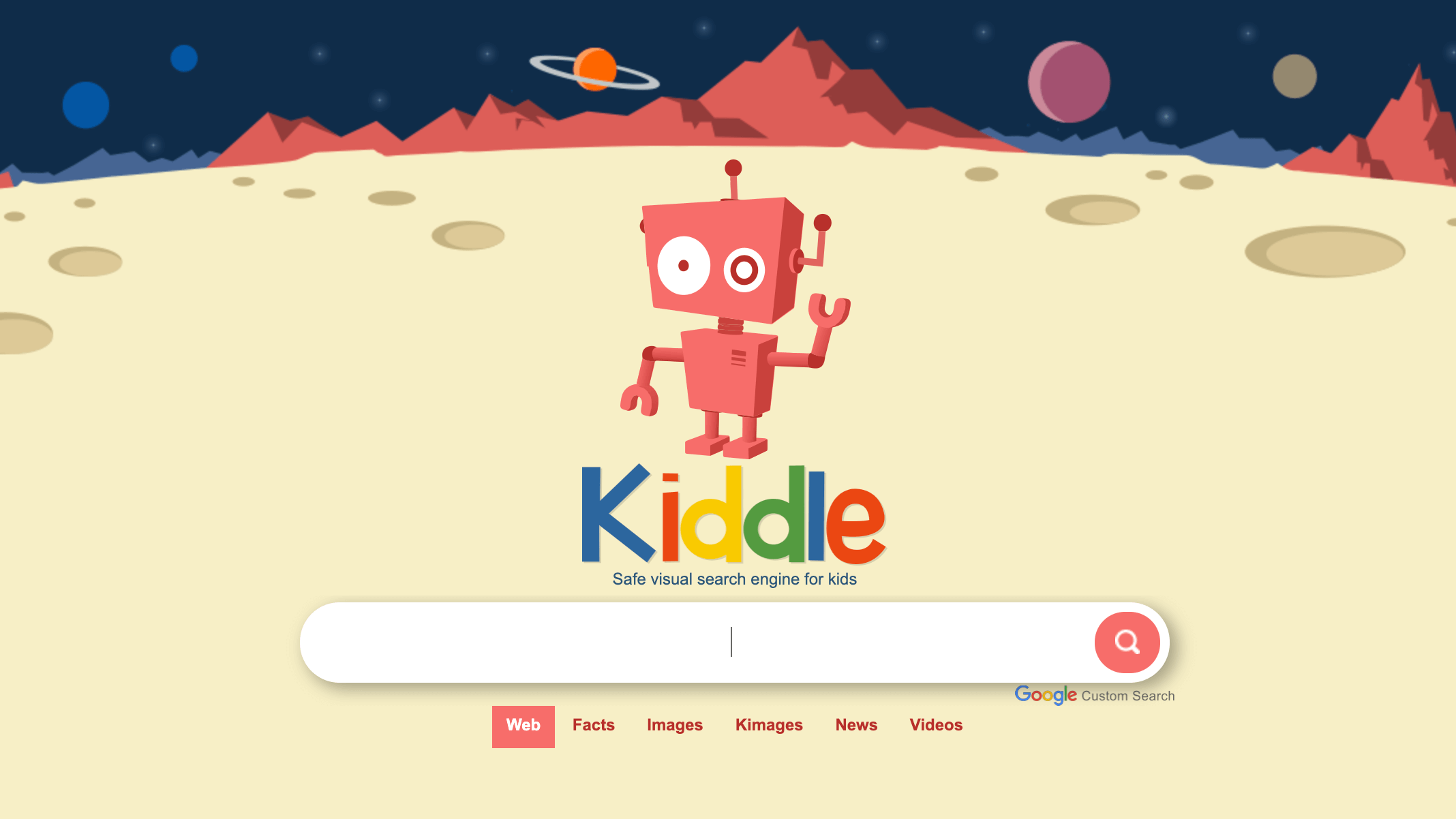
Kiddle is a web search engine for kids and an online encyclopedia that emphasizes safety for young children by pushing child-safe content higher in its search results. It’s designed to block profanity and other questionable words from search results.
After the user enters the subject, Kiddle presents search results with the first three results being deemed safe and written specifically for kids and “checked by Kiddle editors”. The next four results are safe sites not written especially for kids, but presented in kid-friendly language. The eighth result and anything else beyond are safe sites written for adults but harder to understand for kids.
If the user enters words that may not be suitable for children, a picture of a robot is displayed telling the user to try again.
How Does it Work?
How is this Tool Designed Specifically for Kids?
1) Safe Search: sites appearing in this search results satisfy family-friendly requirements, as it filters sites with explicit or deceptive content. You can read more on kids’ safe search here.
2) Kids-Oriented Results: the points below illustrate how this kids’ search engine returns results for each query (in the order shown):
- Safe sites and pages are written specifically for kids. Handpicked and checked by Kiddle editors.
Typically, results 1-3.
- Safe trusted sites that are not written specifically for kids but have content written in a simple way, easy for kids to understand. Handpicked and checked by Kiddle editors.
Typically, results 4-7.
- Safe, famous sites that are written for adults, providing expert content, but are harder for kids to understand. Filtered by Google safe search.
Typically, results 8 onwards.
3) Big Thumbnails: most search results are illustrated with big thumbnails, which makes it easier to scan the results, differentiate between them, and click the most appropriate results to your query. Thumbnails serve as visual clues and are especially beneficial to kids as they don’t read as fast as adults.
4) Large Arial font in search results provides better readability for kids.
5) Privacy: This kids’ search engine doesn’t collect any personally identifiable information, and its logs are deleted every 24 hours. You can read their full privacy statement here.
References
Visit our shop
Mar 27, 2021
What is Educaplay?
Educaplay is an online tool that lets teachers create free educational games. The site is free to use and eliminates the need for using different software programs.
Once registered, teachers can create free educational games of different types (Quiz, Matching, Crosswords, etc.) share them with their students, and receive the results.
Types of Activities:
Samples of Activities:
Memory Game
Create Free Educational Games in Educaplay
Crossword Puzzle
Create Free Educational Games in Educaplay
Quiz
Create Free Activities in Educaplay
Fill in the Blanks
Create Free Educational Games in Educaplay
Matching Game
Create Free Educational Games in Educaplay
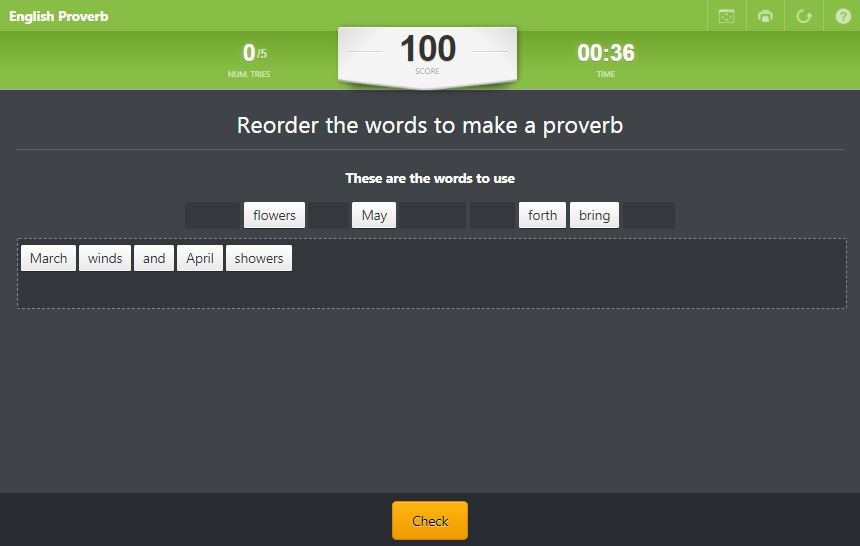
Unscramble Words Game
Create Free Educational Games with Educaplay
How to Create Free Educational Games in Educaplay?
Riddle
Riddle is an activity in which you must find out a word according to some given clues.
Every time you ask for a clue, your score is reduced; this is the reason why you must try to guess the word using the lowest number of clues. But be careful because every riddle has a maximum number of attempts that you are not allowed to exceed.
The clues can be text or audio clues. There may also be an image that is slowly revealed each time you ask for a clue.
Educaplay Riddles are quick games that can help the player review concepts through definitions, sounds and images.
Create Free Educational Games in Educaplay
Fill in the Blanks Game
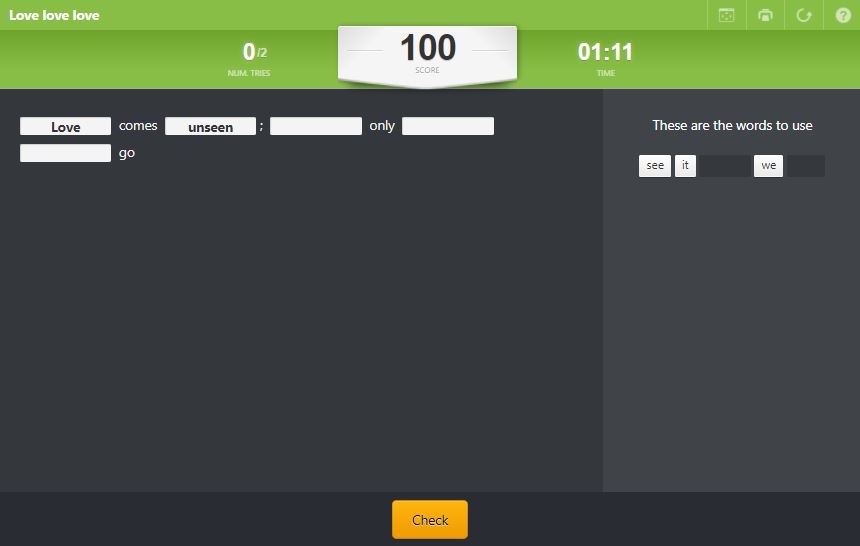
The Fill in the Blanks Game activity consists of filling in the missing words of a given text. The text can be phrases, sentences, or even full paragraphs.
There are two methods to fill in the blanks:
- Clicking on the missing words from a jumbled list in the sidebar. The words must be chosen in the order they appear in the text. If you make a mistake, click on the incorrect word to return it to the word list.
- Typing each word into the blanks.
The difficulty level of the activity will vary depending on how many words are missing from the text. Some activities will only be missing a few words and will be relatively easy to complete. Other activities will present more of a challenge by requiring you to completely rewrite the sentence from the mixed-up words.
This activity is often used in language courses and children’s classes.
It is an interesting activity to strengthen concepts and their meanings, with a greater difficulty if the answer has to be whole written (and not clicked on).
Create Free Educational Games in Educaplay
Crossword Puzzle
A Crossword Puzzle is a grid of squares that contain blanks for words that overlap horizontally and vertically. Clues are given for each word.
When the user clicks on one of the blank squares, the clue for that word will be shown. Then the user can type in the word.
In Educaplay’s Crossword activity, there are three ways to give the clue:
- With a text, as commonly used.
- With a sound.
- With an image.
You can choose to make help buttons available so that the user can ask to have a letter, or even an entire word, revealed. Each time a help button is used, the user’s score is reduced.
After filling in all of the words, the user must press CORRECT to check the answers and see the score or correct any mistakes.
Create Free Educational Games in Educaplay
Dialogue Game
In the Dialogue Game, the user listens to and reads along with a dialogue between two or more characters.
When you create the activity, you have the option to choose a character and mute the audio so that the user can play that role instead of just listening to the dialogue.
The user can choose to have the dialogue advance automatically from one line to the next or play the dialogue at his or her own pace by clicking on each line.
Since you create both the characters and the dialogue for the activity, you need to record or upload the audio for each part of the dialogue.
Create Free Educational Games in Educaplay
Dictation Game
In the Dictation Game, the user must type a dictated text exactly as it is spoken.
In order for the scoring to be accurate, is important that you say the punctuation (“comma”, “period”, “question mark”, etc.) as you record the dictation.
When you create the dictation activity, you will give it a title and adjust various other settings:
- Sensitivity to capital letters.
- Sensitivity to accents.
- Sensitivity to line breaks.
- Method of scoring. Points can be deducted according to a set value, such as one point per error, or they can be deducted proportionally, according to what percent of the text was correct.
- Time between audios. You can adjust the duration of the break between each audio track.
- Time limit. Just like in any other activity, you can establish a maximum time to complete this activity. You can also choose to have no time limit.
After you have adjusted the general settings, you need to enter the text for the dictation exactly as you want the user to type it.
Finally, upload or record the audio, sentence by sentence, so that each sentence can be repeated if necessary.
Create Free Educational Games in Educaplay
Unscramble Letters Game
In this Unscramble Letters Game, the user is given a clue to a word and letters to unscramble to find the answer. The clue can be text. a picture, an audio file, or any combination of the three.
You can choose the way in which the user must unscramble the letters:
- Typing the word.
- Clicking the letters in their correct order.
- Clicking and dragging each letter to its proper place.
The formulation of the question and the clue that helps you to reach the final result are shown on the top of the activity.
You can also provide another recorded clue in order to help users to solve the activity.
Create Free Educational Games in Educaplay
Unscramble Words Game
In this Unscramble Words Game, the user is given a clue to a sentence or phrase and words to unscramble. You can upload or record an audio file as an additional clue. When you create the activity, you can choose the way in which the user must unscramble the words:
- Typing the words.
- Clicking the words in the correct order.
- Clicking and dragging each word to its proper place.
The formulation of the question and the clue that helps you to reach the final result are shown on the top of the page. Another recorded clue can be provided in order to help users to solve the activity.
Create Free Educational Games in Educaplay
Matching Game
In the Matching Game, the user is given a list of words that must be grouped into categories. The categories could be pairs of words, such as synonyms, countries and capitals, or vocabulary and definitions. Or they could be larger groups, such as types of animals or parts of speech.
There are two variations of the Matching Game. When you create the activity, you choose which variation to use:
- Find the elements of every group.
- Find the elements of one randomly selected group.
You can further adjust the difficulty of the activity by setting a time limit for it and by changing the number of mistakes the user is allowed to make.
Create Free Educational Games in Educaplay
Word Search Puzzle
This Word Search Puzzle activity is a puzzle in which you must find hidden words by clicking and dragging on the letters in the grid.
When you create the word search, you will provide the title and word list. You will also be able to choose the directions in which the words can appear in the puzzle.
Other options, such as setting a time limit and hiding the word list, allow you to further adjust the difficulty of the puzzle to match the ability of your target audience.
There are three options for showing the word list:
- Showing the full list.
- Showing only the number of letters in each word.
- Hiding the list.
Create Free Educational Games in Educaplay
Quiz
The Quiz activity consists of a group of questions asked sequentially. The instructions for the quiz are shown at the top of the page along with the question. Each question can include a picture as well as a video or audio element.
You determine the number of questions that will be shown to the user when you create the quiz. If you create more questions than are shown to the user, different combinations of questions will be asked each time the user does the activity. This gives the user the sense that they are taking a different quiz each time. You can also choose to make each question mandatory or optional.
There are three types of questions in the Quiz activity:
- Written answer.
- Multiple choice with one correct answer.
- Multiple choice with one or more correct answers.
There are two methods for scoring the quiz. The first is by percent. You choose the minimum percent required for passing the quiz. In the second method, the user is shown a customized message according to the number of questions that were answered correctly. You create the messages that will be shown to the user.
Create Free Educational Games in Educaplay
Map Quiz
The Map Quiz activity allows users to identify parts of an uploaded image (map, photo, collage, etc.). For example, you could have the user identify the names of rivers on a map or locate the bones of the human body on a skeleton.
You determine the method by which the user identifies the part of the picture:
- The easiest option is by clicking. In this mode the user clicks on the part of the picture indicated at the top of the activity.
- The other possibility is writing. The user selects an item and types its name into the answer space.
Create Free Educational Games in Educaplay
Slideshow
Educaplay Slideshows can be used to collect and display content to users in an organized and educational way that is visually appealing. There is a lot of content on the Internet, but to improve its educational value, it must be selected and properly presented to students.
Users can view the slideshow sequentially, using the top menu of the activity, or they can use the bottom menu to go directly to a particular slide.
Slides can be easily created from predesigned formats, using text, images, audio and YouTube videos, as well as combinations of these elements.
Create Free Educational Games in Educaplay
Video Quiz
The educational content that exists today on the Internet is extensive. Specifically, YouTube has a significant amount of high-quality educational videos. The Video Quiz activity gives you the ability to intersperse interactive questions throughout a YouTube video. It also allows you to combine several videos into one new video.
The Video Quiz activity is a sequence of video segments, each followed by a question that prompts the user for a response.
There are three steps for creating a segment for the video:
- Choose a video: Select a video from a search engine or by typing in the URL for a specific video.
- Create a video segment: Choose the start and stop times for the segment of the video pertaining to the question.
- Add a question: Write your question and choose the type of response. There are four types of responses:
- Multiple choice with one correct answer.
- Multiple choice with multiple correct answers.
- Short answer written response.
- Long answer written response.
You can use the “Feedback” section to provide additional information about a topic that will be displayed to the user after the question has been answered.
Create Free Educational Games in Educaplay
Matching Columns Game
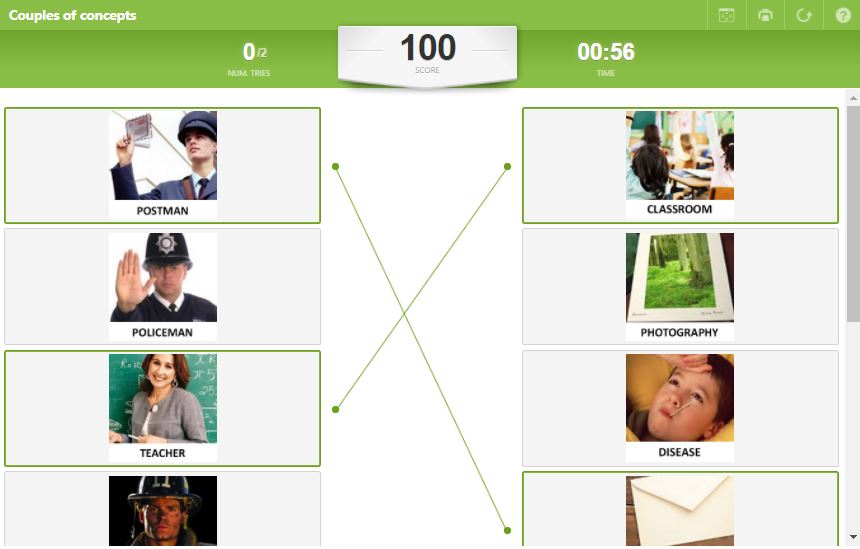
The objective of this Matching Columns Game is to match an item in one column with its pair in a second column. Each item can be text, an image, or audio. The user identifies the matching pair by clicking on the two items that form it.
You can adjust the difficulty of the activity by setting a time limit for it and by changing the number of mistakes the user is allowed to make.
Some common uses for this activity are matching antonyms or synonyms or matching a painting with the artist.
Create Free Educational Games in Educaplay
Memory Game
The objective of this Memory Game is to match pairs of items. Each item can be text, an image, or audio. The user identifies the matching pair by clicking on the two items that form it.
There are several ways to adjust the difficulty level of the activity:
- Set a time limit.
- Change the number of mistakes the user can make.
- Make the cards face up or face down.
You are also able to adjust the size of the cards to accommodate the number of matches in the activity.
Some common uses for this activity are matching antonyms or synonyms or matching a painting with the artist.
Create Free Educational Games in Educaplay
ABC Game
This ABC Game consists of guessing a word for each of the letters of the alphabet, starting from a clue.
The word to be discovered will begin with the corresponding letter or, if so indicated, will contain the letter.
You can skip a letter and go to the next one by clicking on the “Skip” button, but you must complete it later. The game will not finish until all the letters are answered.
The clues offered can be text, image or audio.
You can configure the maximum number of errors to exceed each activity and the maximum time to do it.
References
Visit our shop
Dec 30, 2020
What is This Educational Football Game?
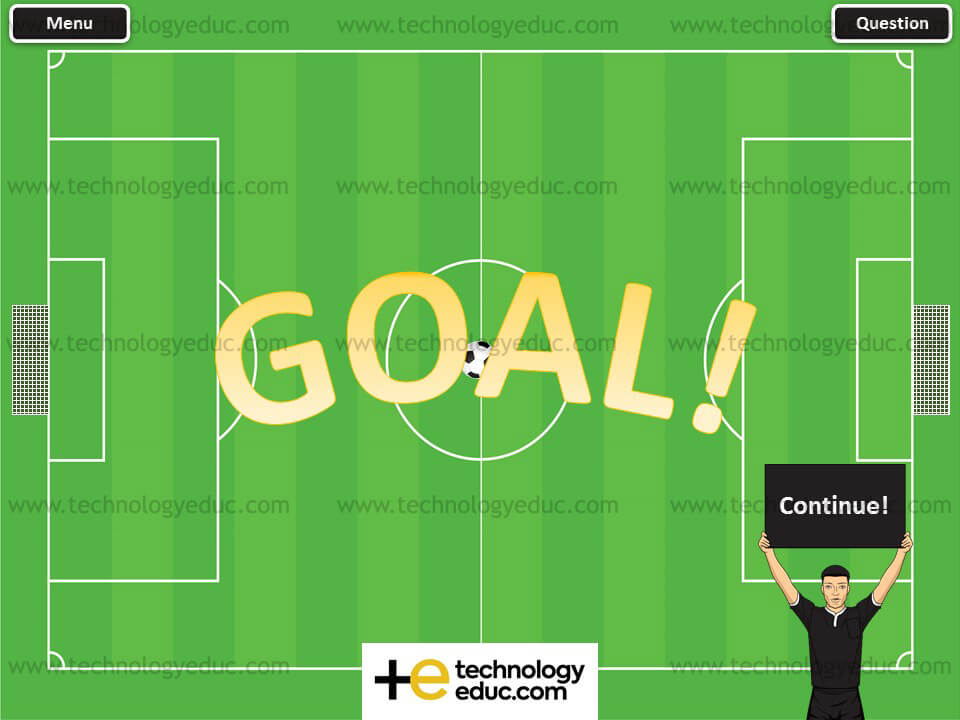
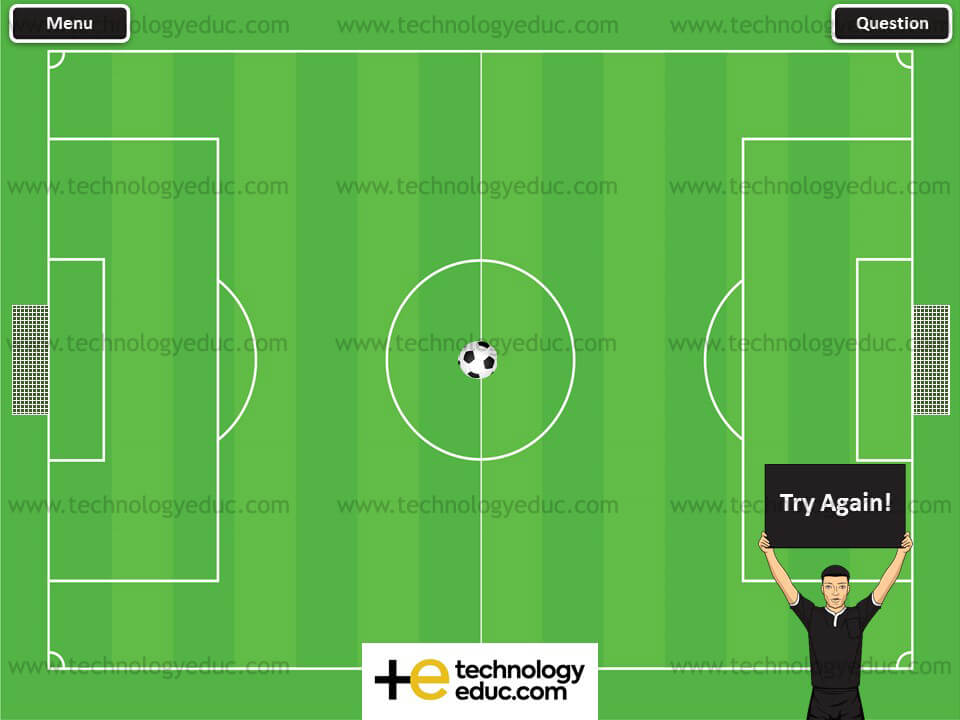
Are you searching for innovative PowerPoint games to deliver your content? Check this educational football game that you can smoothly integrate into your classroom! Using an interactive board, teachers can test their students’ knowledge while having fun!
Get the football PowerPoint template here!
How to play this game?
1) Download the PowerPoint template here
2) Add your questions
3) Divide your students into 2 teams where every student has the chance to choose a player and answers his question. If the answer is correct, his team will get a star. At the end of the game, the winning team is the one with the most stars.
Get The Game
Did you like this creative game? Order it now from our store and customize it for various subjects with your content. (Math, Science, Languages, etc.)
Get More Customizable PowerPoint Games!
Need more ready-made game templates? Find them in our store!
References
Visit our shop
Dec 15, 2020
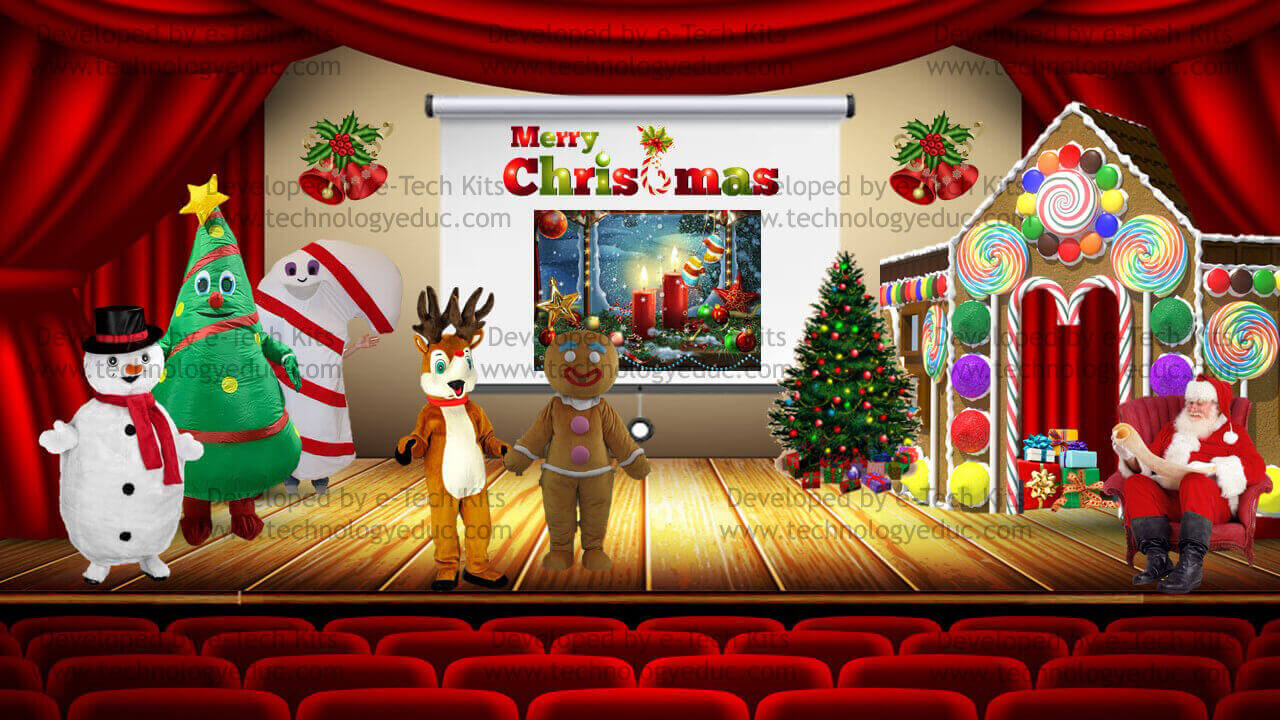
As the festive season is here, have a look at these outstanding bitmoji Christmas ideas developed by the Lebanese educator Donna Yazbeck and get them from our bitmoji store!
Bitmoji Christmas Ideas
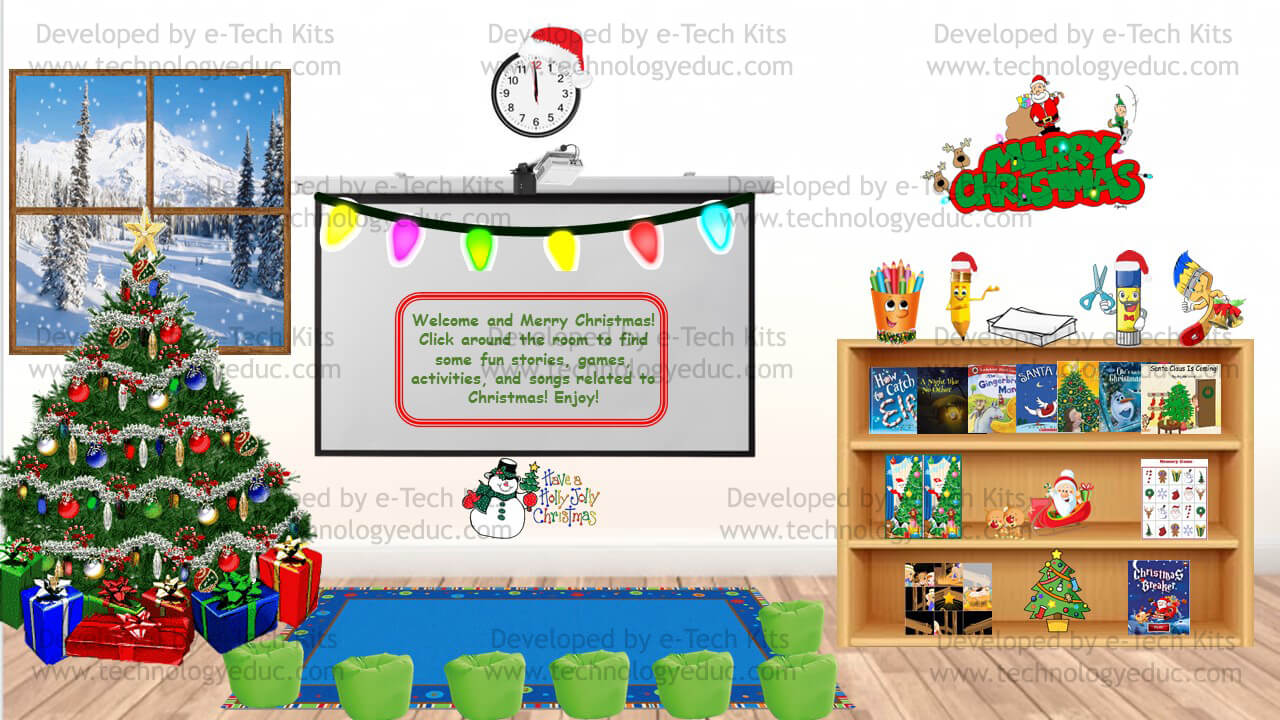
Christmas Preschool Classroom
Download the template here!
Christmas show
Download the template here!
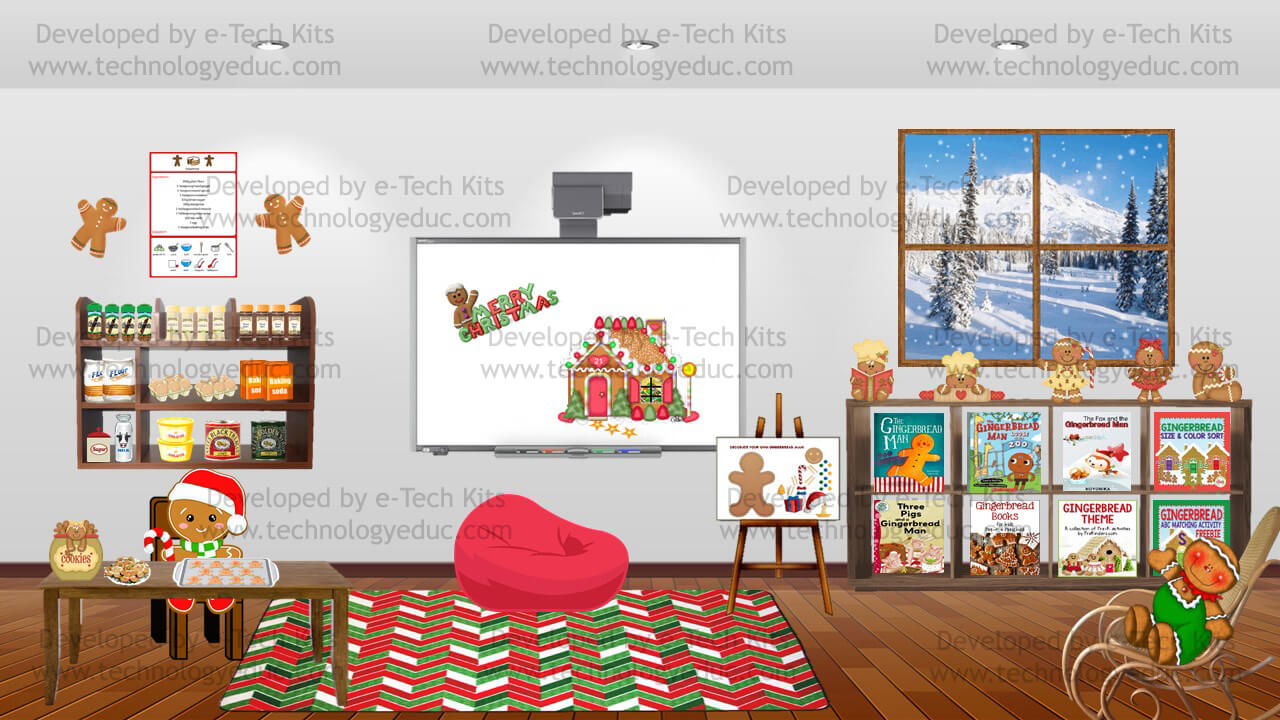
Bitmoji Gingerbread
Download the template here!
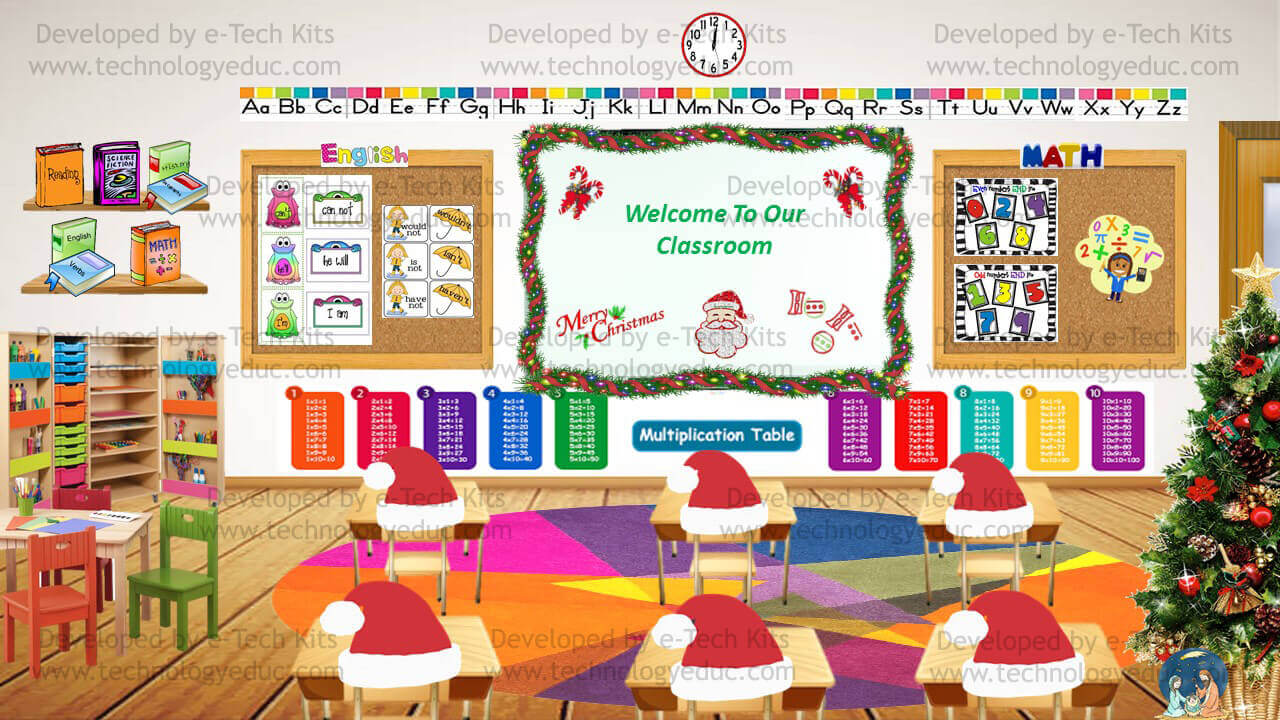
Christmas Classroom
Download the template here!
Christmas Classroom
Download the template here!
Christmas Classroom
Download the template here!
Create your own Classroom!
Were you inspired by the bitmoji classroom ideas and want to create your own Bitmoji classroom? Check out a step-by-step tutorial here.
Get your own bitmoji classroom templates!
Want to get ready-made templates? Get them from our bitmoji store!
References
Visit our shop
Oct 18, 2020
Are you teaching online and facing challenges with your students’ engagement and participation? Here are some interesting collaboration tools for distance learning that add interactivity to your online sessions and enhance your students’ learning experience.
5 Collaboration Tools for Distance Learning
Flipgrid
Flipgrid is a simple, free, and accessible video discussion experience where teachers can create discussion topics and share them with learners. From their side, learners respond to these topics by recording and sharing short videos with their teacher and classmates.
Pear Deck
Pear Deck allows teachers to create interactive presentations by adding multiple-choice questions, drag and drop activities, drawing activities, text and numbers responses, and websites’ links to their presentations to create active learning and formative assessment opportunities. When learners respond, teachers can see the outcomes in real-time and share them with the class, to promote class discussions and drive students’ engagements.
EdPuzzle
EdPuzzle allows teachers to choose videos from YouTube, Khan Academy, and other websites or use their own videos to track students’ comprehension by adding their own voice narration and questions. Also, they can check if students are watching the videos, how many times they’re watching each section, and if they’re understanding the content.
Nearpod
Nearpod helps educators develop interactive lessons that contain quizzes, polls, videos, collaborate boards, open-ended questions, matching pairs, and more to check students’ understanding. They can access thousands of pre-built K-12 standards-aligned lessons or upload their own lessons and make them interactive. All lessons can be shared as a tab in Microsoft Teams, making it easy for students to access the lesson content quickly and easily.
Padlet
Padlet is an online “virtual wall” tool where learners can share thoughts on a common topic. It’s like a piece of paper, but on the web where collaborators can simultaneously create and organize posts of any content type, whether it be text, documents, images, videos, audio, or links.
The bitmoji virtual classroom that we shared in an earlier post is also one of the interesting collaboration tools for Microsoft Teams. You may check a step-by-step tutorial on how to create it here.
References
Visit our shop
Oct 4, 2020
Using bitmoji classrooms during distance learning is now trending. Check out these bitmoji classroom templates developed by the dedicated Lebanese educator Donna Yazbeck and get them here!
Bitmoji Classroom Templates
1. Bitmoji Computer Lab
Download the template here.
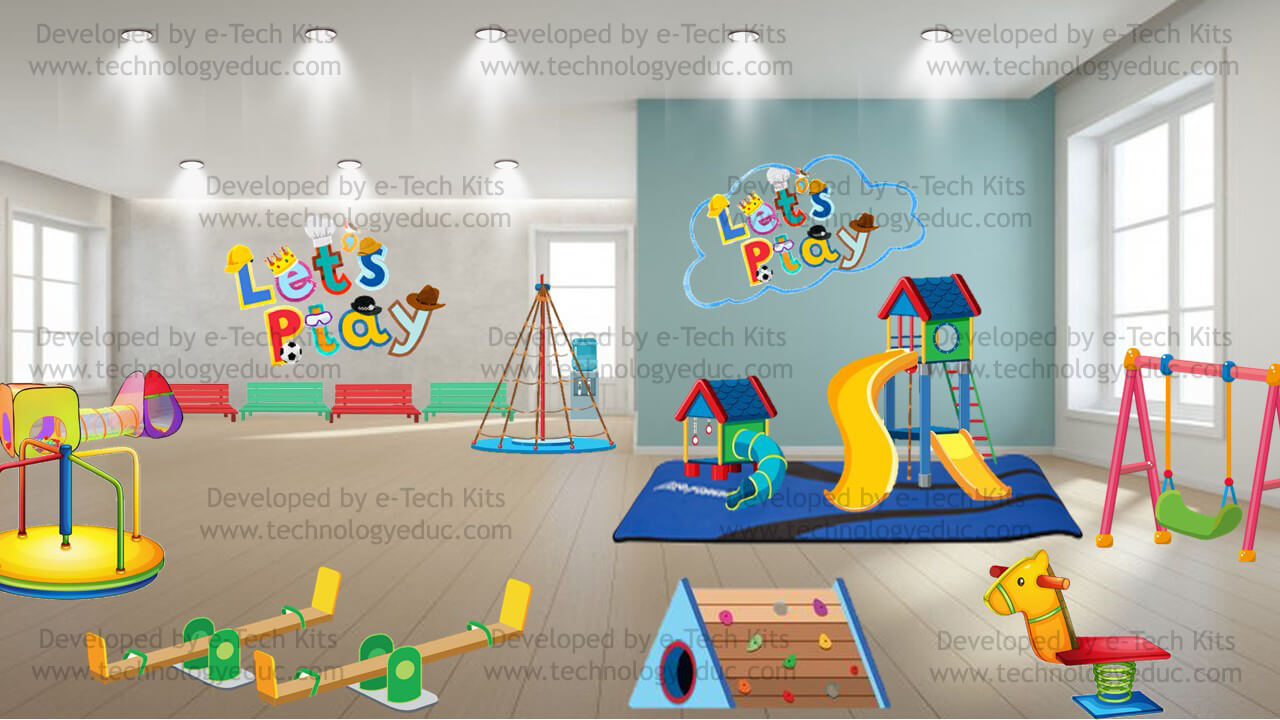
2. Bitmoji Playground
Download the template here.
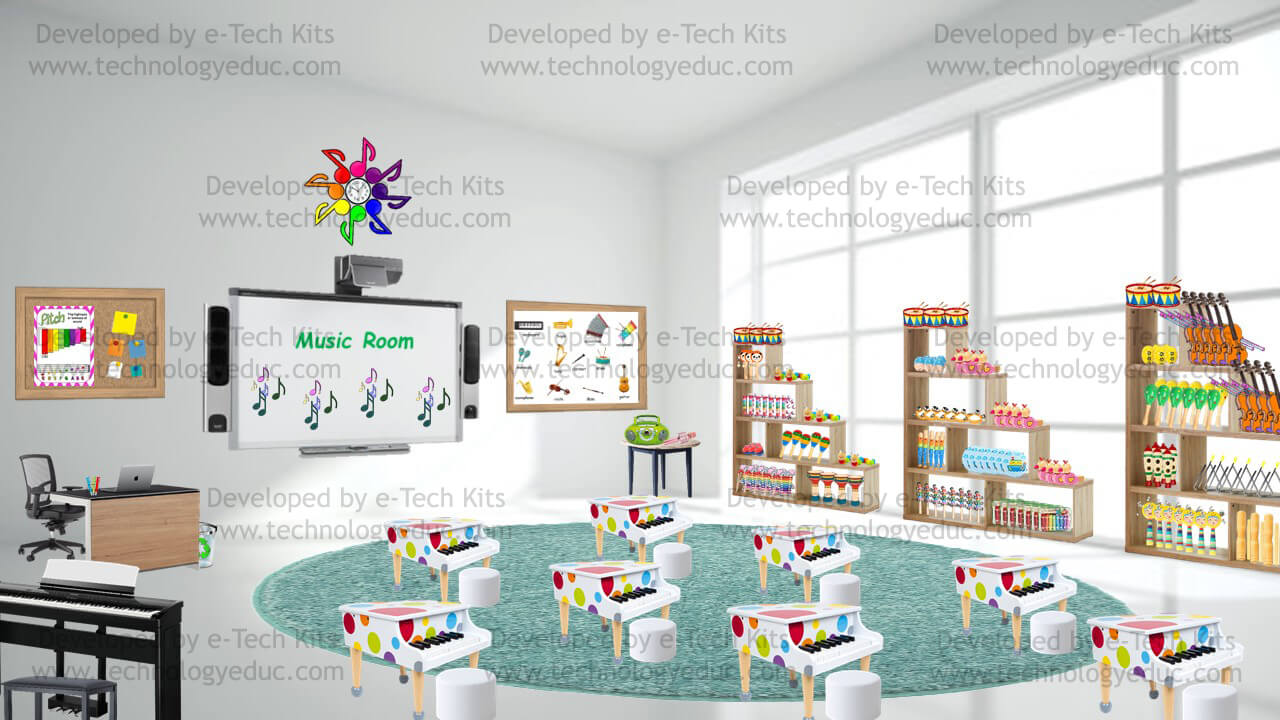
3. Bitmoji Music Room
Download the template here.
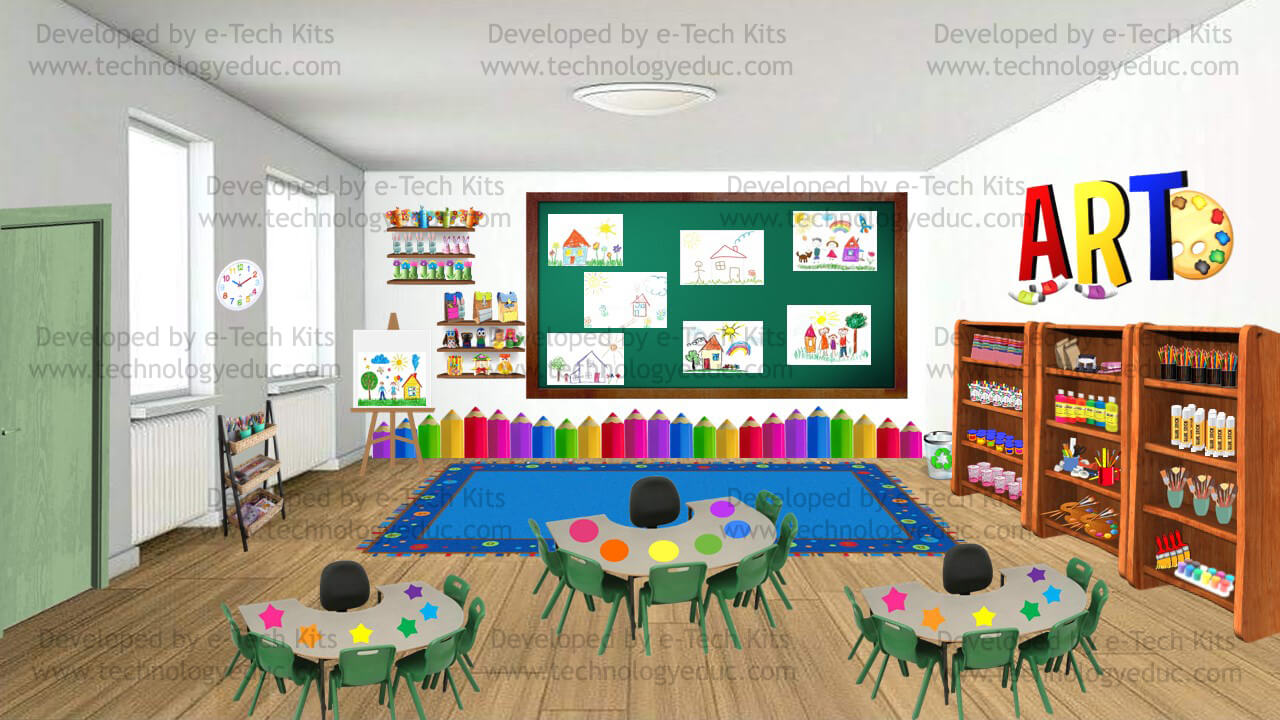
4. Bitmoji Art Room
Download the template here.
5. Bitmoji Science Lab
Download the template here.
6. Bitmoji Sports Classroom
Download the template here.
7. Bitmoji School Library
Download the template here.
8. Bitmoji Infirmary
Download the template here.
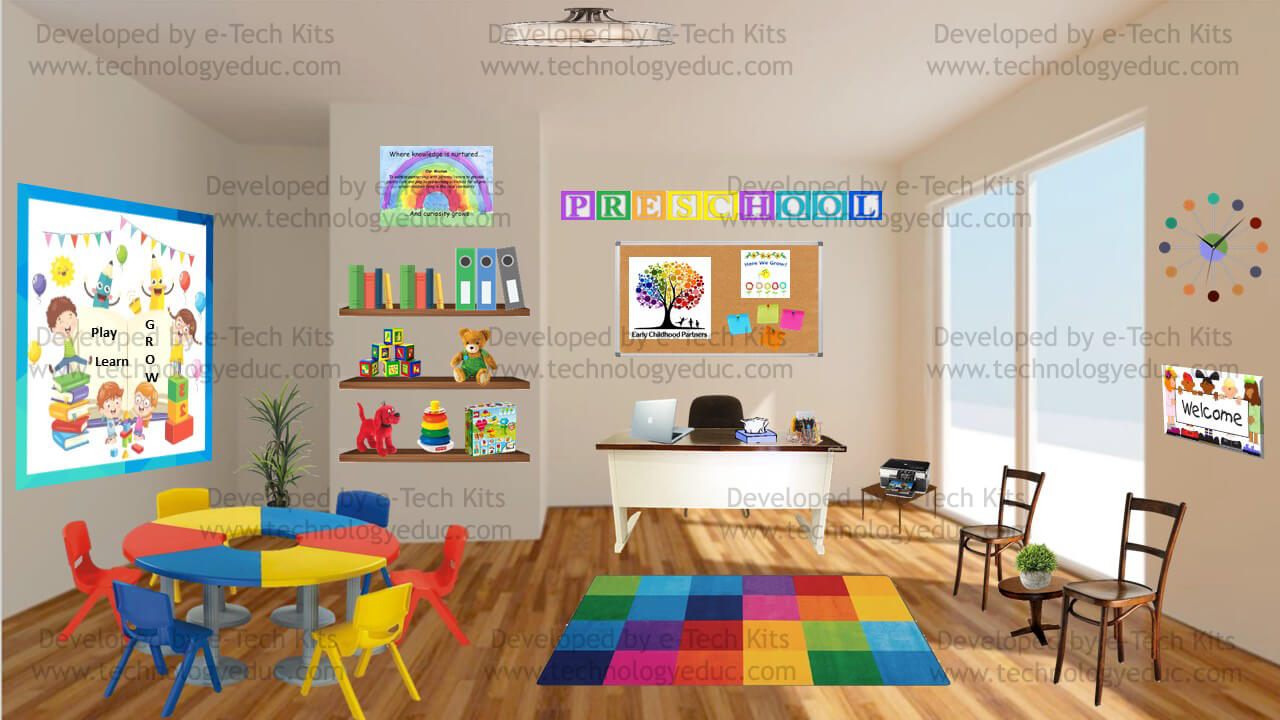
9. Bitmoji Preschool Classroom
Download the template here.
10. Bitmoji Lunchroom
Download the template here.
11. Bitmoji Meeting Room
Download the bitmoji template here.
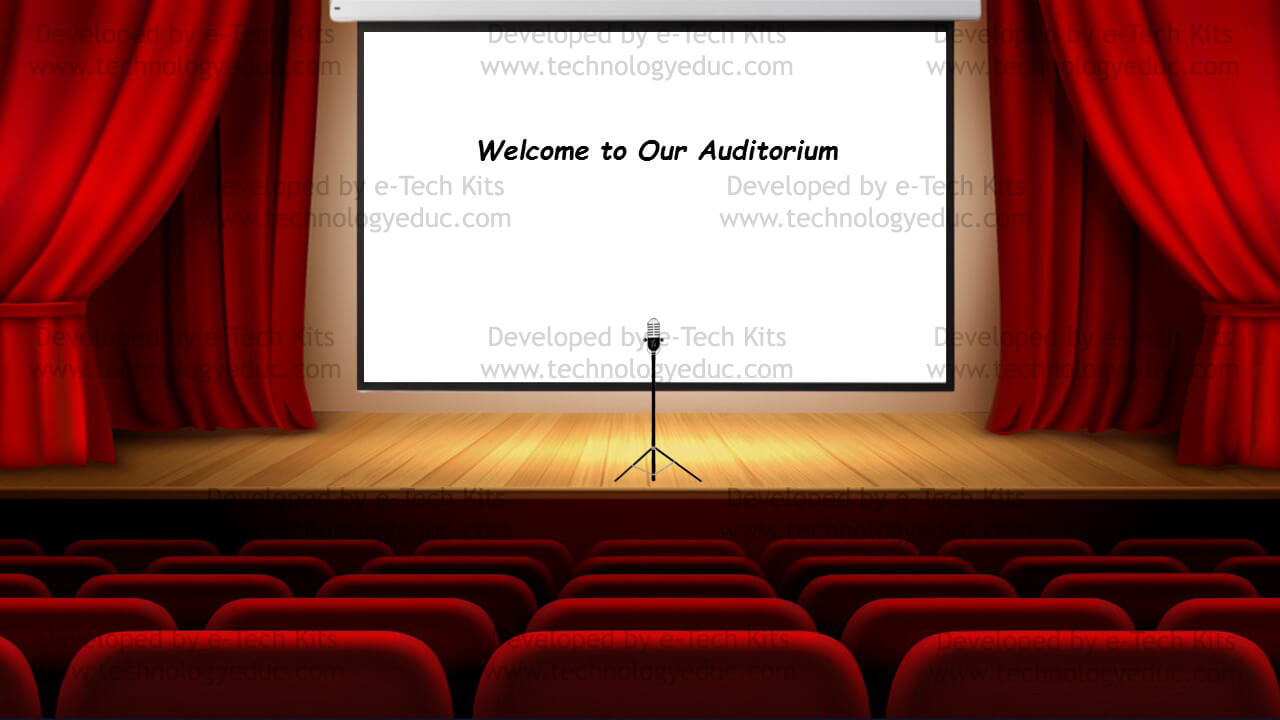
12. Bitmoji Auditorium
Download the template here.
13. Bitmoji Office
Download the bitmoji here.
14. Bitmoji Office
Download the template here.
15. Bitmoji Bathroom
Download the template here.
Create your own Classroom!
Were you inspired by these bitmoji classroom templates and want to create your own bitmoji classroom? Check out a step-by-step tutorial here.
Get your own bitmoji classroom templates!
Want to get ready-made templates? Check out different bitmoji classroom ideas here!
References
Visit our shop
Sep 17, 2020
The upcoming academic year is going to look quite different from a typical school year where many teachers will be teaching virtually due to the COVID-19 pandemic. In order to establish a small sense of normalcy for their students and add some fun to the teaching-learning process, several teachers are using the virtual bitmoji classroom. They are creatively decorating their classrooms with clickable elements that redirect students to the needed content.
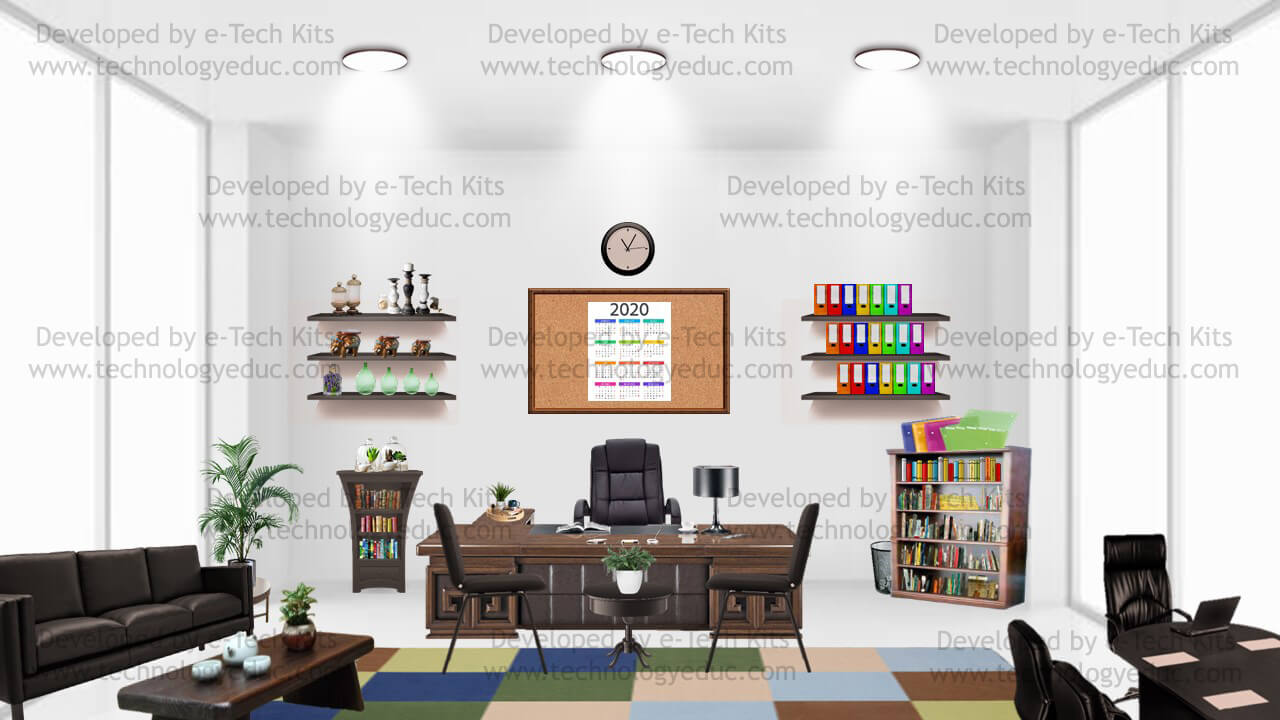
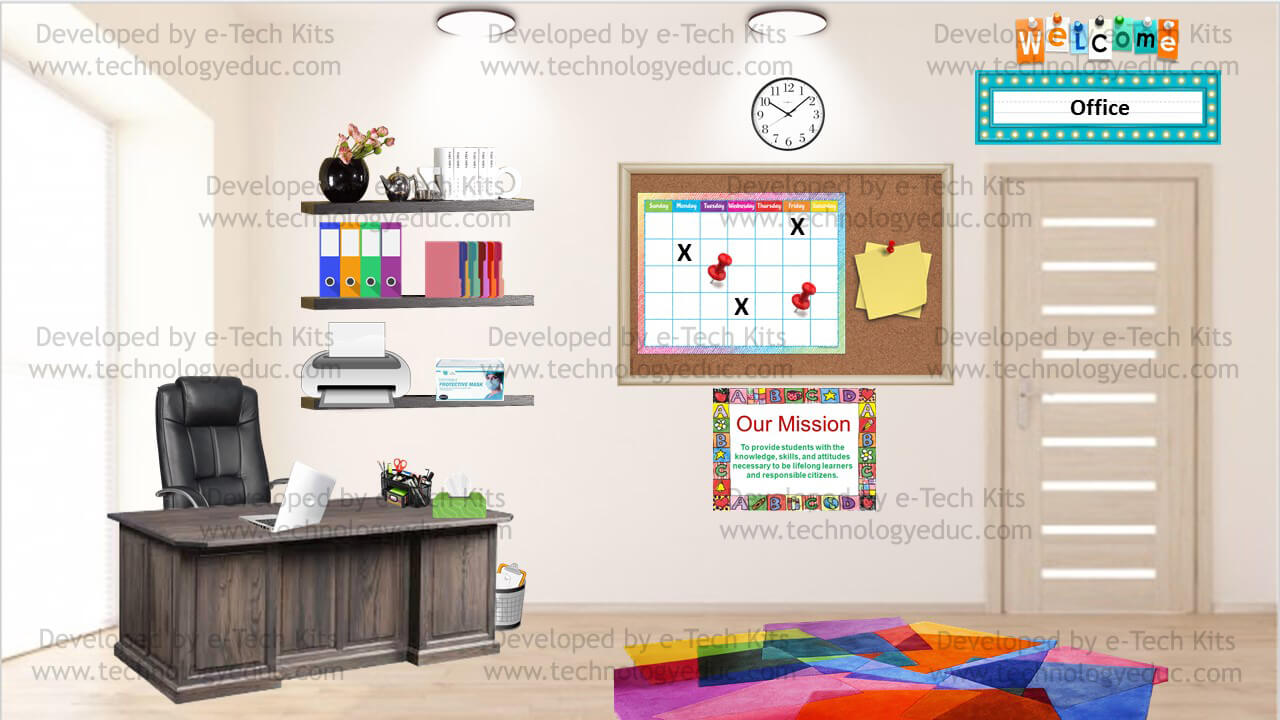
Are you a teacher willing to create your own classroom and looking for ideas of what to include in it? Have a look at the below bitmoji classroom ideas beautifully created and developed by e-Tech Kits. Also, if you don’t know how to get started, check out a step-by-step tutorial here or get a customized one here.
Bitmoji Classroom Ideas
1. Bitmoji Preschool Classroom
Download the template here.
2. Bitmoji Elementary Classroom
Download the template here.
3. Bitmoji Science Lab
Download the template here.
4. Bitmoji Computer Lab
Download the template here.
5. Bitmoji Sports Classroom
Download the template here.
6. Bitmoji School Library
Download the template here.
7. Bitmoji Infirmary Room
Download the template here.
8. Bitmoji Art Room
Download the template here.
9. Bitmoji Music Room
Download the template here.
10. Bitmoji Playground
Download the template here.
11. Bitmoji Auditorium
Download the template here.
12. Bitmoji Meeting Room
Download the template here.
13. Bitmoji School Office
Download the template here.
14. Bitmoji School Office
Download the template here.
15. Bitmoji Lunchroom
Download the template here.
Create your own Classroom!
Were you inspired by the bitmoji classroom ideas and want to create your own Bitmoji classroom? Check out a step-by-step tutorial here.
Get your own Classroom!
Want to get ready-made classrooms? Get them here!
References
Visit our shop
Sep 12, 2020
Bitmoji Classroom invaded the education community as several schools switched to distance learning to cope with the COVID-19 pandemic. Teachers across the globe are spending time creatively developing theirs!
When embedded successfully in the school’s LMS, students will definitely love this rich classroom environment containing an avatar playing the teacher’s role. They will also enjoy the interactive elements allowing them to click through to see assignments, documents, videos, and websites.
Now it’s your turn to create a virual classroom to enhance your distance learning experience!
Download the bitmoji microsoft teams template here.
How to Create a Bitmoji Classroom in Microsoft Teams?
1. Design your avatar on Bitmoji
Download the Bitmoji app from the App Store or Play Store and create your Bitmoji by selecting physical features like hair, mouth, eye color, and an outfit. When you finish creating your character, you can cast it in a huge array of activities, such as reading, singing, or even eating.
A tutorial video by Elisabeth Peacock
2. Add the Bitmoji extension to Google Chrome
Download the Bitmoji Google Chrome extension, which allows you to choose an activity for your Bitmoji (reading, laughing, saying “hello”) to copy and paste into the PowerPoint document containing your virtual classroom.
A tutorial video by Elisabeth Peacock
3. Create a Bitmoji Classroom in Microsoft PowerPoint
Follow the steps mentioned in the tutorial video below to create a virtual classroom and decorate it. Choose the needed material from the resources below and then add the interactive elements that allow your students to click through to see assignments, documents, videos, and websites.
– Giant Bitmoji Library for Sharing:
– Everything to Build your Own Room:
A tutorial video by Elisabeth Peacock
4. Embed the Virtual Classroom in Microsoft Teams
Follow the steps mentioned in the tutorial video below to embed your virtual classroom in Microsoft Teams.
A tutorial video by Elisabeth Peacock
Bitmoji Classroom Ideas
Download the bitmoji science lab here.
Download the bitmoji sports classroom here.
Download the bitmoji library here.
Check out more bitmoji classroom templates here!
References
Visit our shop





 The
The  The
The 



 With the power of Augmented Reality (AR) and 3D elements,
 With the AR feature of
  With
With