May 15, 2016
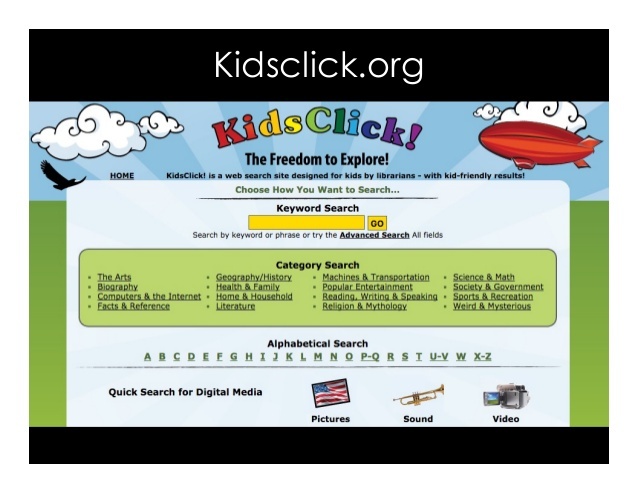
What is KidsClick?
KidsClick is a kids search engine that helps children stay safe while searching for information on the internet. Fortunately, it’s designed specifically to help kids search the web in a safe and kid-friendly environment.
References
Visit our shop
May 15, 2016
What is STEM in 30?
 STEM in 30 is an Emmy-nominated program for middle school students produced by the Smithsonian National Air and Space Museum. It provides live STEM webcasts that engage learners in STEM topics. (Science, Technology, Engineering, and Mathematics)
During the live webcasts, students can chat with experts, submit their questions to be answered live, take a poll, discover related content, and participate in follow-up activities. Educators are provided with additional content and follow-up activities to extend the experience beyond the live webcast.
STEM in 30 brings in Museum curators, astronauts, and experts in the field to connect classrooms with real-world, relevant content. Webcasts produced by the Smithsonian National Air and Space Museum combine animations, interviews with experts, and unique locations to show students that SCIENCE EXTENDS BEYOND THE WALLS OF THEIR SCHOOL!
Benefits and Challenges of Living and Working in Space
How Does it work?
- The Smithsonian National Air and Space Museum releases an episode on the first Thursday of each month.
- Learners can watch it on-demand as the class schedule allows.
- They host a live video chat with their hosts and experts from the episode on the second Thursday of each month.
- They bring the burning questions that came up when learners watched the episode and dive even deeper into each month’s topic.
References
Visit our shop
Apr 29, 2016
What is Literature Map?
Literature-Map is a tool that makes the process of finding authors and books easier. Type in an author’s name into the search box and you will get names of other authors that you might like. The closer another author’s name is to the one you entered, the more you might like their work. This tool could be useful for students that are looking for new books to read.
How Does it Work?
Example: Typing “Paulo Coelho”
Image 1
Image 2
References
Visit our shop
Apr 4, 2016
What is Tineye?
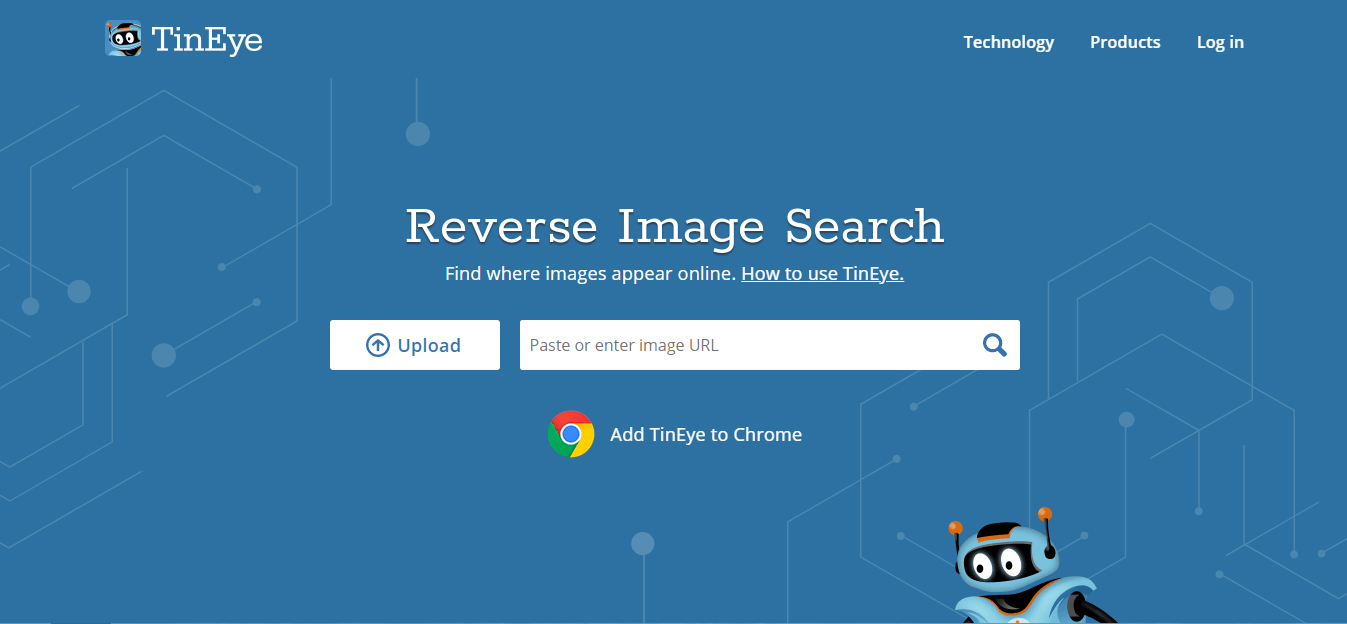
TinEye is a reverse image search engine that allows users to search with images and not keyboards. A user uploads an image to the search engine or provides a URL for an image or for a page containing the image and the search engine will lookup other usages of the image on the internet, including modified images based upon that image, and report the date and time at which they were posted.
Why Use a Reverse Image Search Engine?
- Find the Copyright holders of an image
- Find out where an image came from, or get more information about it
- Research or track the appearance of an image online
- Find higher resolution versions of an image
- Locate web pages that make use of an image you have created
- Discover modified or edited versions of an image
- Debunk an image
- Help with image attribution
What Kind of Images Can a User Use on TinEye?
- File type: JPEG, PNG, and GIF images are all acceptable.
- Image dimensions: It works best with images that are at least 300 pixels in either dimension, but can accept images as low as 100 pixels in either dimension.
- File size: 20 megabytes is the maximum file size.
- Watermarked images: For best results, visibly watermarked images should be avoided as TinEye may search for the watermark and not the image itself.
- Subject matter: Submitted images must adhere to their Terms of Service.
Browser Extensions for this Reverse Image Search Engine
The TinEye extensions allow you to search for any web image by simply right-clicking on images in a web browser. We have extensions for Firefox, Chrome, Edge, and Opera.
References
Visit our shop
Mar 13, 2016
What is Animaps?
Animaps allows users to create animated maps with markers that move, images and text that pop up on cue, and lines and shapes that change over time. These maps can be shared as videos.
Teachers can use this to create animated wars’ battles, tours of historic events, trips, etc. to enhance their teaching sessions. Students can also use it for their projects and assignments.
How Does it Work?
Examples of Maps
References
Visit our shop
Feb 21, 2016
What is WhatsApp Web?
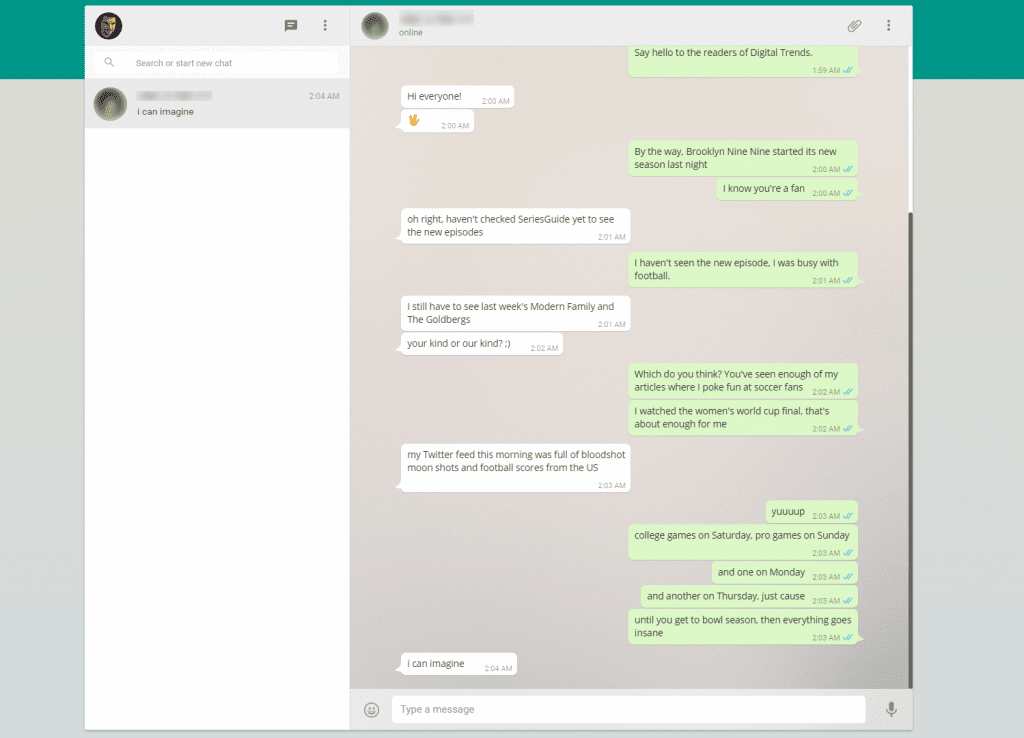
WhatsApp is a wildly popular free messaging service that boasts more than 2 billion users worldwide. And while many people use it via their phones, it can also be used on a desktop or laptop. If you know you’re going to be away from your phone for a bit and need to send a quick message, or if you just want to be able to keep in touch with your friends or family while you work, using WhatsApp Web on your computer can be a great option.
How to Use it?
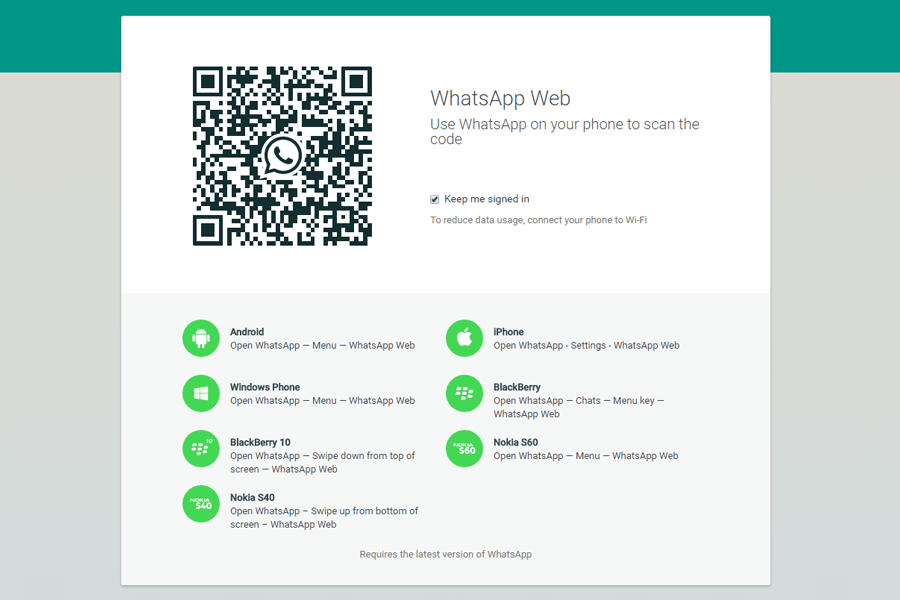
Step 1: On your computer, go to http://web.whatsapp.com
Step 2: On your phone, go to WhatsApp and then:
For Android: Tap on the teal OK button that appears at the bottom of the screen. You may be asked to allow WhatsApp to have access to your phone’s camera: Tap on Continue — you may need to answer other permissions questions to grant access. Your phone’s screen should now look like a QR code scanner.
For iOS: Tap on the Scan QR code option, and the app will ask for permission to access your camera. Accept, and the screen should show a QR code scanner for the next step.
After this step, your app will open a screen with a camera window.
Step 3: Point the camera window at your computer screen, scan the QR code and your WhatsApp account and contacts will appear in the WhatsApp Web screen on your computer.
References
Visit our shop
Dec 30, 2015
What is Text2MindMap?
Text2MindMap is a free and excellent tool that learners can use to create mind maps by writing outlines and see the connections between ideas in their outlines. They can rearrange these connections by simply cutting and pasting.
How Does it Work?
Instructions to Create Mind Maps
- Turn tab-indented lists
- Press Tab to indent lines
- Press Shift + Tab to unindent lines
- Drag nodes to re-organize them
- Right-click the mindmap to save it as an image
Samples
The Future Tense
Months of the Year
Technology in the Classroom
References
Visit our shop
Nov 30, 2015
What is LinkBunch?
Linkbun.ch lets you combine multiple links into one short link. Teachers can use it to send a group of links to their students by simply adding the links and click ‘Bunch’ to get a small one.
How to Use it?
Step 1: Go to https://linkbun.ch/
Step 2: Add your links in the box and click “Bunch”
Step 3: Copy the created link
Sample
References
Visit our shop
Jul 7, 2015
What is Fotojet?
FotoJet is an online collage maker where you can create beautiful photo collages, posters, cards, and more in minutes!
With hundreds of collage templates, this free collage maker makes it easy and fun for teachers and students to collage their photos in an artistic way, complete with clipart images, text samples, and photo editing options.
Teachers can also use this tool with their students in different ways; They can create image collages to summarize a lesson, to create a small story, or to group their own photographs.
How Does it Work?
Why Choose FotoJet Collage Maker?
- 800+ Templates & Layouts – Make free photo collages that will impress people with classic photo grid layouts and various types of collage templates.
- Abundant Resources – Myriad clipart images, shapes, fonts, backgrounds, etc. will boost your creativity in awesome ways.
- Easy to Use – With only a few clicks, anyone can create amazing and free photo collages even without any experience.
- No Registration Required – Try it to create free photo collages, no download or registration required, effortless and time-saving!
Exclusive Education Package
Want to get free access to FotoJet Plus? If you are a teacher or a student, you’re offered an exclusive chance to get it for one year free by filling in the form here.
School Collage Ideas
Whether you want to create back-to-school collages or school days collages to share your moments and events, you can get your brainwave from these samples.
References
Visit our shop
Feb 12, 2015
What is Flippity?
Flippity is a free resource that allows teachers to turn Google Sheets into activities such as quizzes, flashcards, presentations, memory games, word searches, and more. While it can be used by a teacher as a presentation tool and work assignment, it’s also a great way to get students to create their own projects.
All the templates are provided for free and simply require the teacher or students to make edits to personalize the experience.
How Does it Work?
Activities Templates
- Flashcards
- Quiz Show
- Random NamePicker
- Randomizer
- Scavenger Hunt
- Board Game
- Manipulatives
- Matching Game
- Timeline
- Bingo
- Badge Tracker
- Leader Board
- Typing Test
- Spelling Words
- Word Search
- Crossword Puzzle
- Word Scramble
- Snowman
- Progress Indicator
- Word Cloud
- Fun with Words
- MadLabs
- Tournament Bracket
- Certificate Quiz
- Self Assessment
Samples of Activities
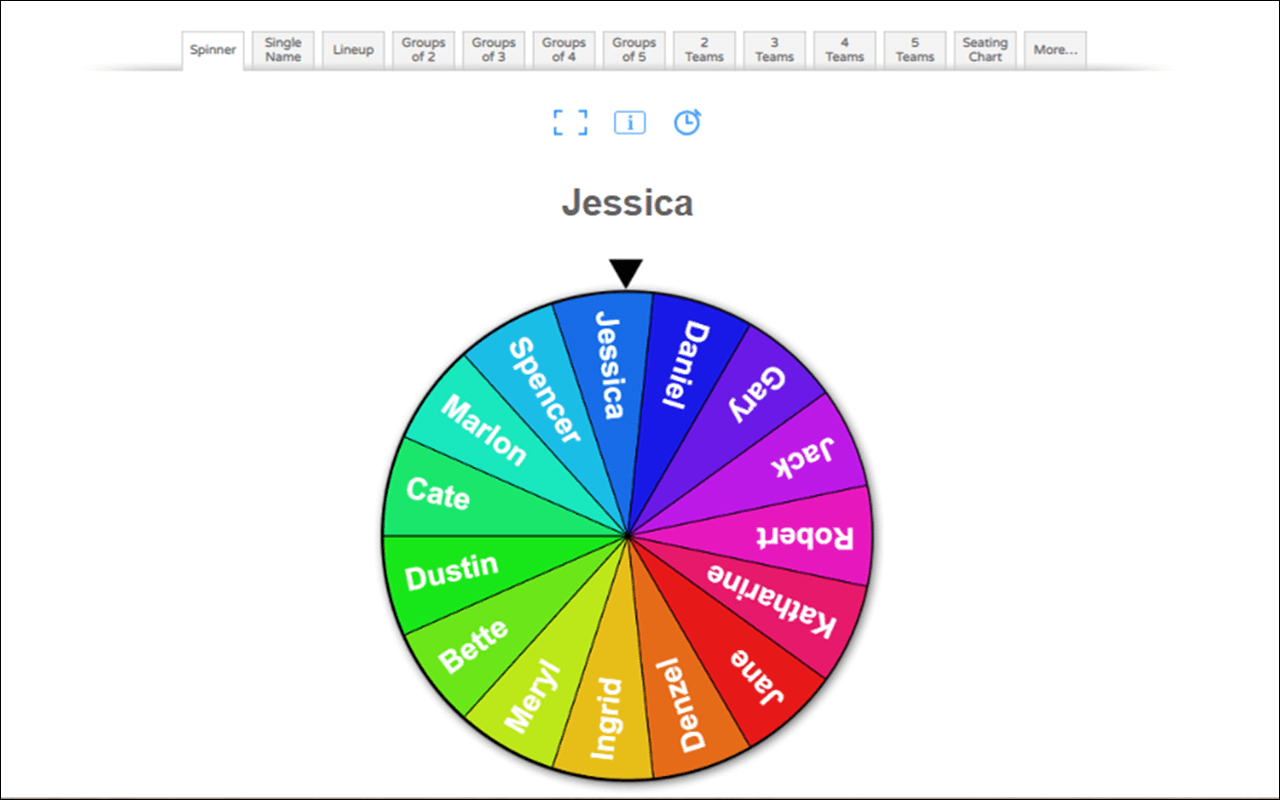
Random NamePicker
Board Game
Flashcards
References
Visit our shop
Jan 12, 2015
What is VideoNotes?
With VideoNotes, teachers and students can take video notes while watching instructional videos. It allows them to load any YouTube video on the left side of the screen and take notes on the right side. This video notes app also has a Google Drive integration to save and share notes.
How Does this Video Notes App Work?
VideoNot.es Features
- Automatically synchronized – All the notes you type are automatically synchronized with the video. Later, just click on a line for the video to jump to the relevant part.
- Integrated with Google Drive – Create and manage your video notes directly via your Google Drive and access them from everywhere.
- Easy to share – Manage your permissions, take video notes and share them with your friends, fellow students, or make them private anytime.
References
Visit our shop
Nov 29, 2014
What is MathFLIX?
MathFLIX is a free platform with more than 1000 free instructional Math videos covering a wide range of Math concepts including numbers & operations, algebra, measurement, geometry, data analysis & probability, connections & technology. In addition to its valuable video resources, the site also features 400 downloadable worksheets that reinforce concepts and provide valuable practice.
The math videos are 4-7 minutes in length, are organized by NCTM (National Council for Teachers of Mathematics) Standards and are also cross-referenced in an alpha index so viewers can access math support by specific topic. The website is created and maintained by Loyola University Chicago School of Education in partnership with The Chicago GEAR UP Alliance.
Math Concepts
- Numbers & Operations
- Algebra
- Measurement
- Geometry
- Data Analysis & Probability
- Extended Responses
- Technology
- Connections
References
Visit our shop















 With
With